How to Configure Search Features
The Advanced Search features in Blindata can be configured through the Search Settings page, which allows administrators (USERS_ADMIN permission required) to enable and configure both Full-Text Search (FTS) and Semantic Search capabilities.
To access the Search Settings page:
- Navigate to Settings in the main navigation menu
- Click on More (three dots menu)
- Select Search Settings from the dropdown menu
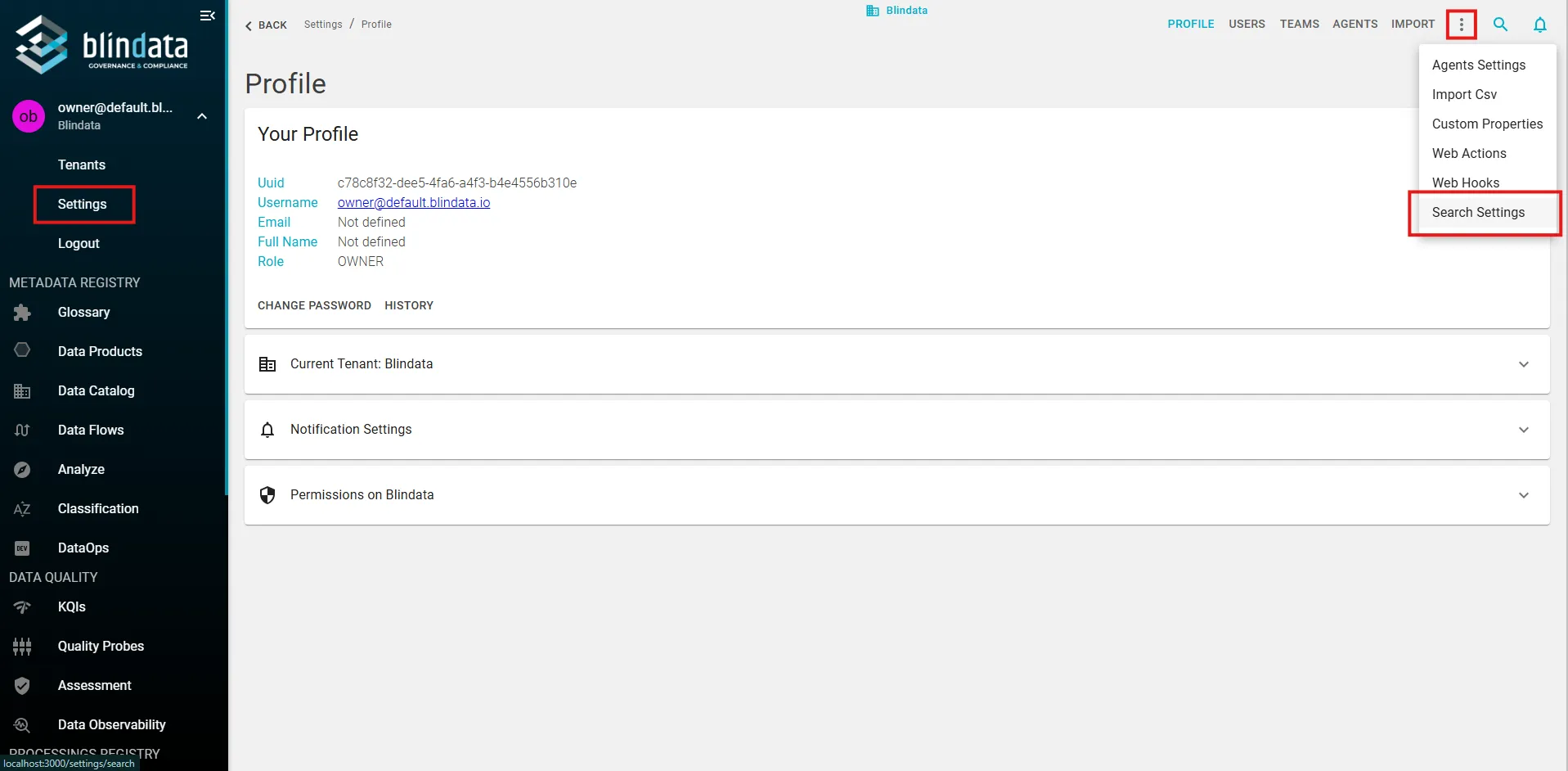
The Search Settings page is divided into two main sections: FTS and Semantic Search.
Full-Text Search (FTS) Configuration
The FTS section provides configuration options for PostgreSQL-based full-text search capabilities. Here you can control how the system processes and indexes text for enhanced keyword matching. The configuration options are:
- Enable FTS allows you to toggle the Full-Text Search functionality on or off.
- Language Configuration specifies the language for PostgreSQL text processing and search optimization. It’s recommended to choose the primary language used in your data assets and descriptions, as this setting directly affects how PostgreSQL processes and indexes text for search operations.
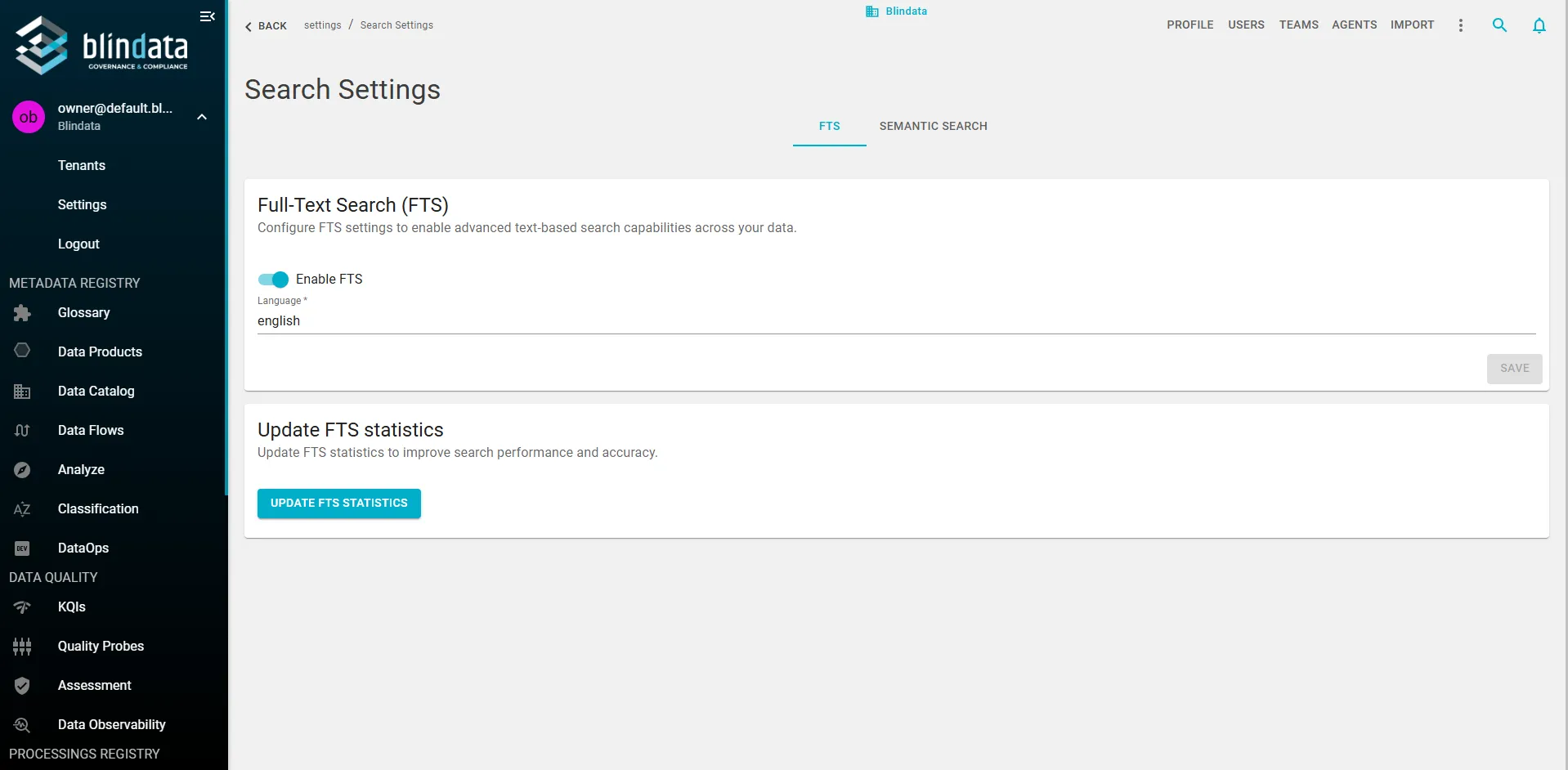
Update FTS Statistics allows you to manually refresh the PostgreSQL lexeme statistics to improve search performance and accuracy. This operation updates the internal statistics that PostgreSQL uses for ranking search results. You should run this after enabling FTS for the first time, after changing the language setting, or if search results seem inconsistent.
The operation may take a few moments depending on the size of your data.
Note
Update FTS Statistics is only available after FTS has been enabled and a valid configuration has been saved.
Semantic Search Configuration
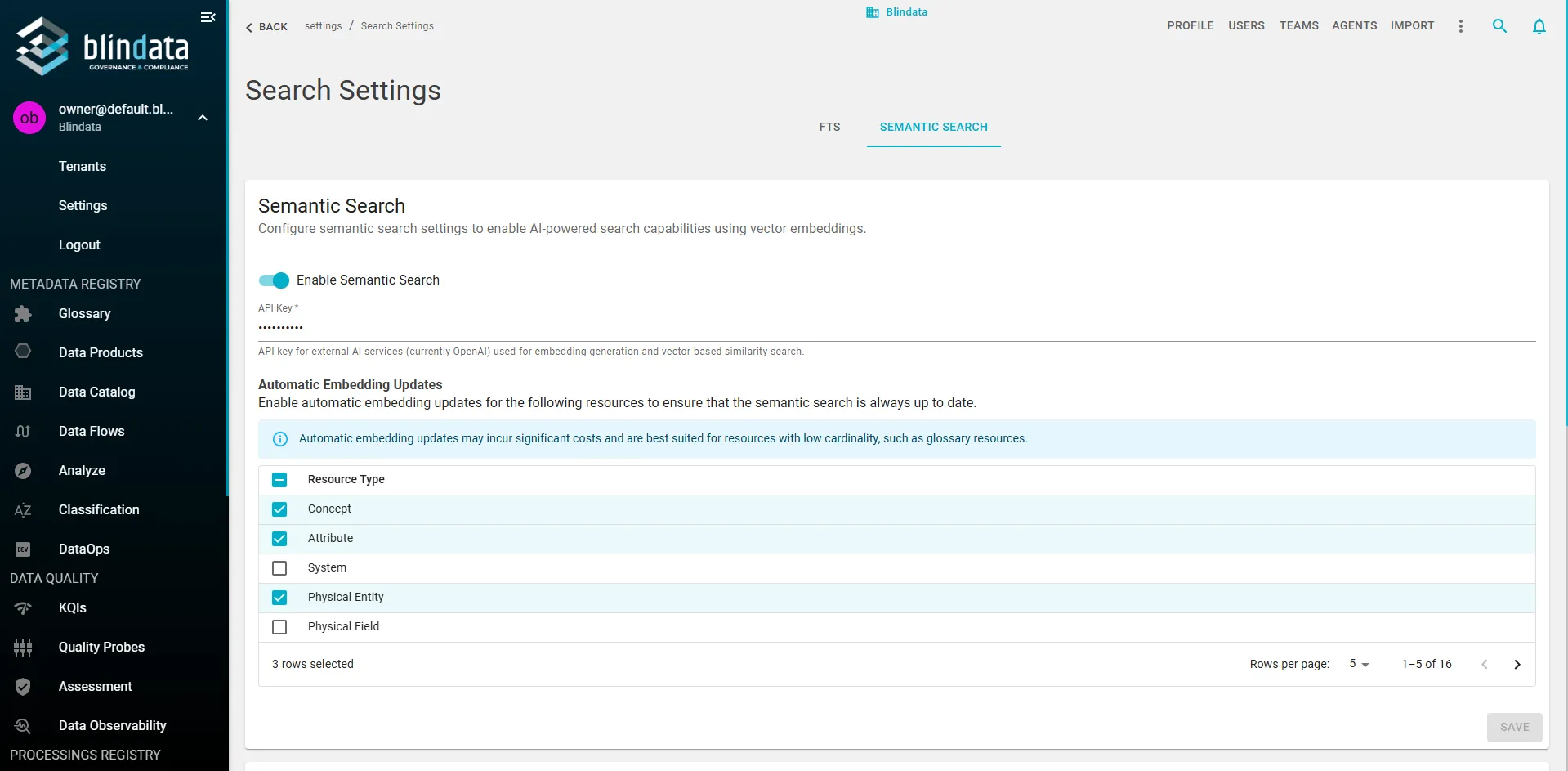
The Semantic Search section contains configuration options for AI-powered semantic search capabilities. The configuration options are:
- Enable Semantic Search toggles the Semantic Search functionality on or off.
- AI Provider selects which embedding service Blindata uses to generate vectors. Supported values:
- OpenAI — uses the OpenAI embeddings API with the built-in model
text-embedding-3-small(1536 dimensions). - Gemini — uses Google Gemini (
gemini-embedding-001) with 1536-dimensional output. - Custom endpoint (Bring Your Own) — routes embedding requests to a URL you provide. Use this when you want to host your own embedding service or use a private cloud endpoint.
- OpenAI — uses the OpenAI embeddings API with the built-in model
- API Key Configuration provides authentication for the selected provider. Required for all providers, including custom endpoints.
- Embedding service URL (custom endpoint only) — the URL of your embedding service. Required when Custom endpoint (Bring Your Own) is selected.
- Automatic Embedding Updates lets you configure which resource types should have embeddings automatically updated when entities are created or modified. This ensures semantic search stays current without manual intervention. However, automatic updates may incur significant costs and are best suited for resources with low cardinality, such as Business Glossary resources. It’s recommended to enable this only for frequently updated, low-volume resource types to manage costs effectively.
Note
Changing the AI provider or custom endpoint URL invalidates existing embeddings. After saving a new provider or endpoint, run Update Embeddings for the resource types you search against.
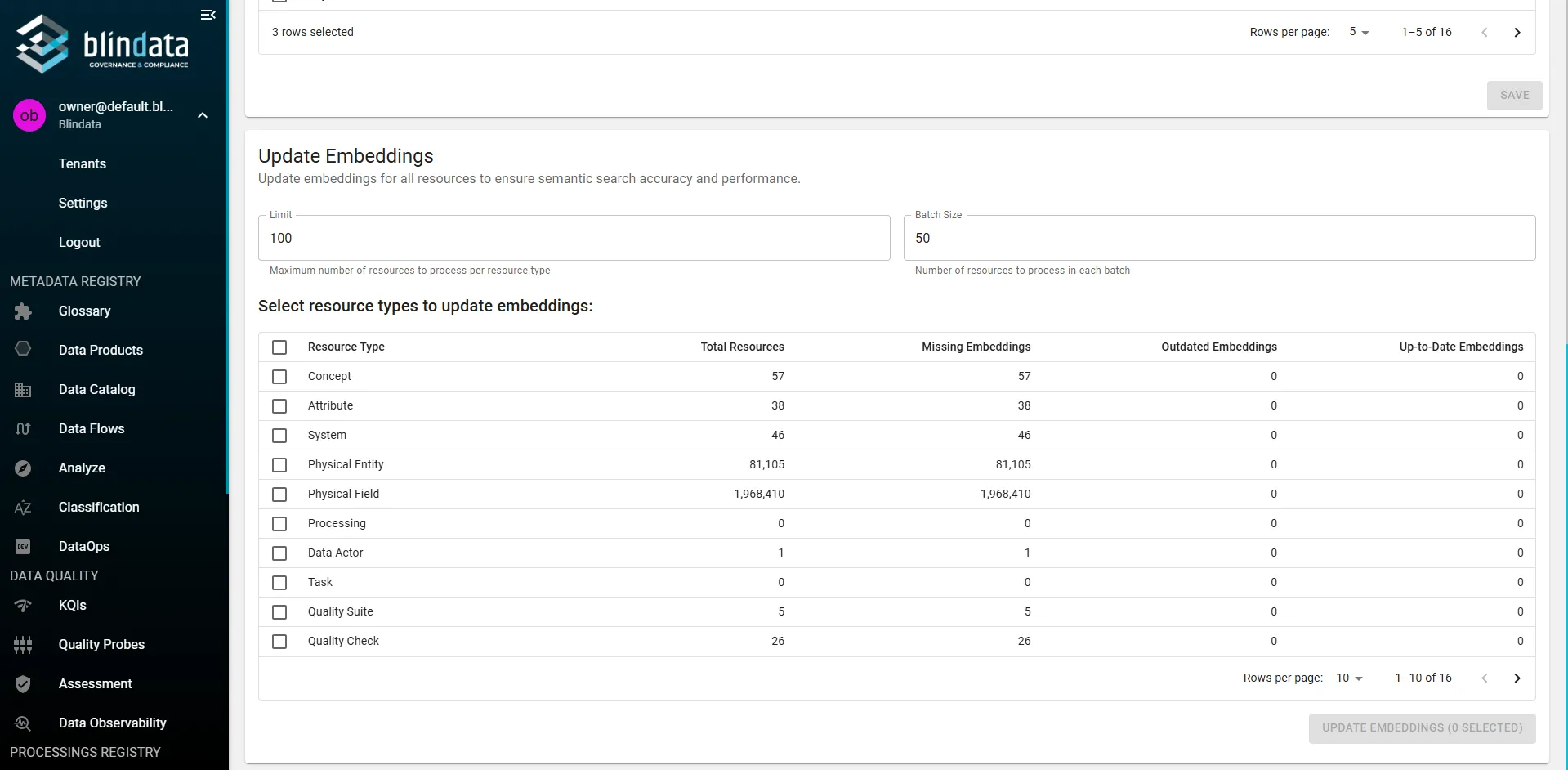
Update Embeddings allows you to manually update embeddings for all resources to ensure semantic search accuracy. This process generates or updates vector embeddings for all searchable resources. You should use this after enabling Semantic Search, after significant data changes, or if semantic search results seem outdated. The operation includes several parameters:
- Resource Types (select which types to update, such as Data Products or Physical Entities)
- Limit (maximum number of resources to update per resource type)
- Batch Size (number of resources processed simultaneously).
This operation can be resource-intensive and may take several minutes to complete.
Note
Update Embeddings is only available after Semantic Search has been enabled and a valid configuration has been saved.
Bring Your Own embedding endpoint
Select Custom endpoint (Bring Your Own) in Search Settings and provide your Embedding service URL and API key.
If you are developing your own endpoint, it must return embeddings with 1536 dimensions (the same size used by the built-in OpenAI and Gemini providers). Blindata sends a POST request with:
Headers: Content-Type: application/json, x-api-key: <your configured API key>
Request body:
{
  "operation": "embed_contents",
  "text": "<text to embed>"
}
Response (HTTP 2xx):
{
  "embeddings": [
    [0.0123, -0.0456, "..."]
  ]
}
The embeddings array must contain at least one vector of 1536 floating-point values. Input text longer than 32,000 characters is truncated before the request is sent.
Note
This is a Blindata-specific contract, not the OpenAI or Gemini API format. If your service wraps another provider, add a translation layer that maps to the schema above.
Configuration Best Practices
For FTS:
- Enable FTS first, then select the appropriate language
- Choose a language that matches your primary data language
- Update FTS statistics after initial configuration
For Semantic Search:
- Choose the AI provider that matches your compliance and hosting requirements (OpenAI, Gemini, or a custom endpoint).
- Ensure credentials and, for custom endpoints, the embedding service URL are valid before enabling semantic search.
- For custom endpoints, verify the service returns 1536-dimensional vectors before enabling automatic updates.
- Start with automatic updates disabled for high-volume resource types.
- Manually update embeddings after initial setup or after changing provider or endpoint.
- Monitor API usage and costs when using automatic updates or external providers.
General Recommendations:
- Test both search modes after configuration
- Monitor search performance and user feedback
- Periodically update lexeme statistics (for FTS) and embeddings (for Semantic Search)