This guide explains how to use the Blindata AI Assistant: opening the panel, working with page context and quick actions, mentioning resources, managing conversations, attaching files, and checking your usage.
Info
Availability: The Blindata AI Assistant is available when enabled for your organization. If you do not see the assistant icon in the top toolbar, contact Blindata support to request activation.
Opening and layout
Open the assistant
Click the sparkle icon in the top-right toolbar of the Blindata application.
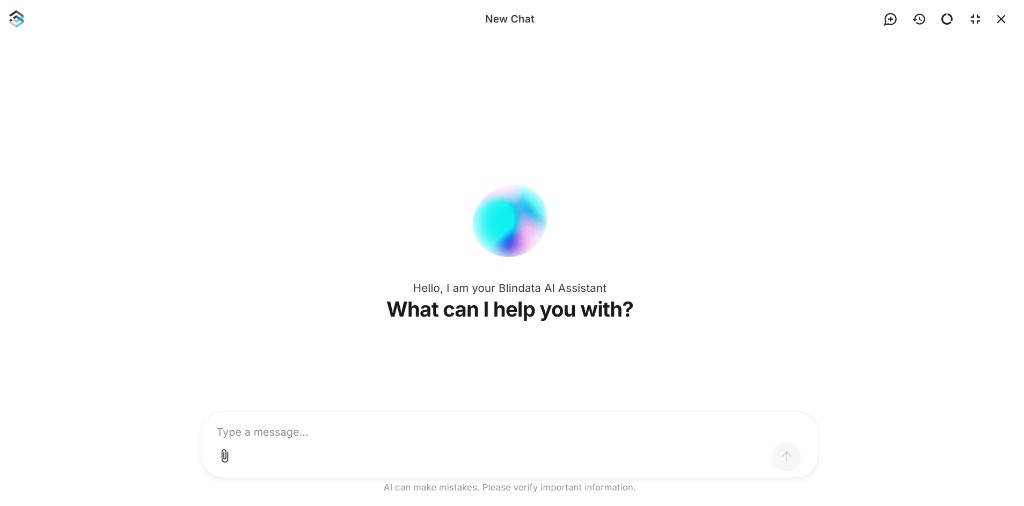
The assistant opens as a sidebar on the right. You can keep working in Blindata while the panel is open.
To close it, click the X button in the chat header, or click the sparkle icon in the toolbar again.
Fullscreen mode
Click the expand icon in the chat header to open the assistant across the full screen. Click the icon again (labeled “Exit fullscreen”) to return to the sidebar.
Closing the assistant panel automatically exits fullscreen.
Starting and continuing conversations
New chat
Click the New chat button (box with a plus icon) in the chat header to start a fresh conversation. New threads are titled “New Chat” until the assistant generates a title from your first message.
Send a message
Type your question or instruction in the input field at the bottom of the panel and press Enter or click the send button.
Note
Below the input field, you will see: “AI can make mistakes. Please verify important information.” Review the assistant’s suggestions, especially when it creates or updates metadata, before relying on them.
Page context
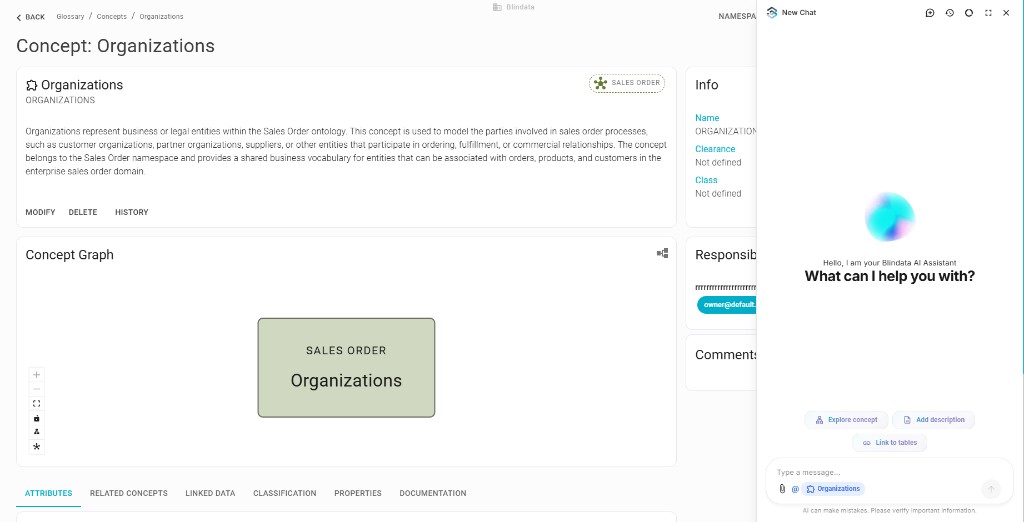
When you open the assistant while viewing a Blindata resource, the panel inherits that page as context. The assistant scopes discovery, drafting, and linking to the asset you are already looking at, so you do not have to repeat its name in every message.
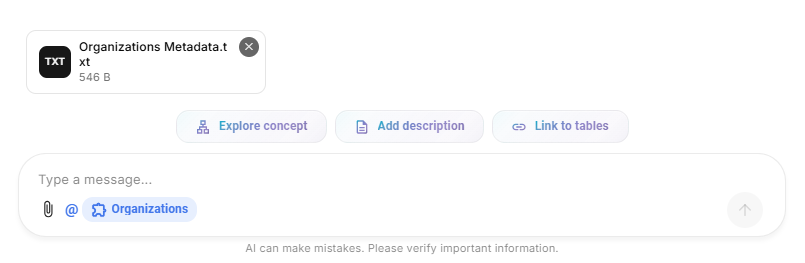
The active context appears as a chip in the input bar, for example Organizations when you are on a concept page. Context is carried through the conversation until you remove it or start a new chat.
When context helps most
- You are on a concept, namespace, table, column, or data product page and want stewardship work on that specific asset.
- You want follow-up questions to stay focused on the same resource without re-identifying it each time.
- You opened the assistant from a detail page and expect answers grounded in that object’s relationships and metadata.
Page context works together with quick actions (below) and the @ chip in the input bar, which reflects the same active resource.
Quick actions
On a new chat, when page context is available, the assistant shows quick action buttons above the input field. Each button starts a common governance task for the resource you are viewing.
Quick actions depend on the resource type you are viewing. For example:
| Resource type | Example quick actions |
|---|---|
| Concept | Explore concept · Add description · Link to tables |
| Namespace | Explore namespace · Add description · Model from document · Document to glossary |
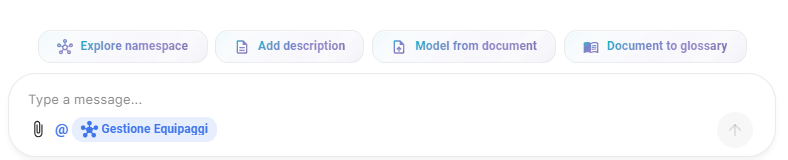
Click a quick action to send a focused starter prompt. You can edit the message before sending, or follow up in the same thread to refine the result.
If no page context is set, the welcome screen shows without quick actions until you open the assistant from a resource detail page.
Mentioning the current resource with @
The @ chip in the input bar shows the resource of the page you currently have open, for example Organizations on a concept page. It keeps the active resource visible while you type and matches the page context the assistant already uses.

For now, only the current page resource can be mentioned. You cannot @-mention other namespaces, concepts, or catalog assets from the picker. Open the resource you want to work on in Blindata first, then use the assistant from that page.
You can combine page context, the @ chip, and file attachments in the same message.
Reviewing creates and updates
When you ask the assistant to create or change metadata (glossary terms, catalog entries, semantic links), it applies those changes in your Blindata organization using the same permissions as your user account.
After each response:
- Read the summary in the chat and open any resource cards to inspect the affected assets in Blindata.
- Check names, descriptions, relationships, and links match your governance standards.
- If something is wrong, ask for a correction in the same conversation, for example “Rename that concept to …” or “Link that column to … instead.”
Discovery questions (search, lineage, summaries) do not change your metadata. Stewardship requests can. The in-chat reminder applies especially to creates and updates.
Chat history
Click the History icon (clock) in the chat header to open the History panel.
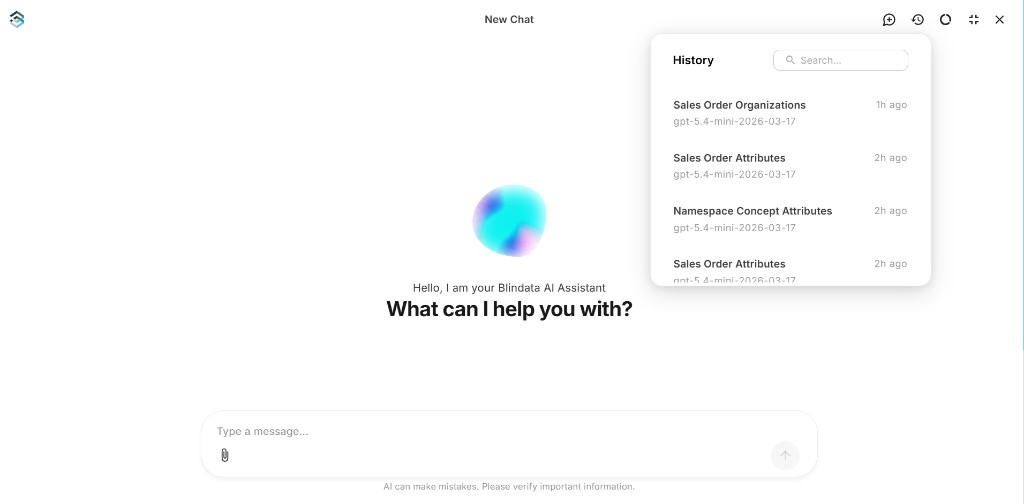
From the history panel you can:
- Browse past conversations, sorted by recency
- Search by conversation title using the search field
- Open a conversation to continue where you left off
- Rename a conversation via the row menu (⋯ → Rename Conversation)
- Delete a conversation via the row menu (⋯ → Delete Conversation)
Each row shows the conversation title, how long ago it was updated, and the model used.
If you have no conversations yet, the panel displays “No conversations yet”. You must be signed in to see your history.
Adding files
Attach materials you already use in governance work and explain what you want the assistant to do with them. Files add context to your message. They do not replace your written instruction.
Files work especially well with page context: for example, attach a metadata export while viewing a concept and ask the assistant to draft a description that matches your source material.
How to attach a file
- Click the paperclip icon in the chat input area
- Choose a file from your device
- Write a short instruction explaining how the assistant should use the file
- Send the message
Attached files appear as pills above the input field. Remove a file with the X on the pill before sending if you attached the wrong one. The assistant reads the file content together with page context and your organization’s metadata.
Supported file types
You can attach:
- Images: diagrams, screenshots, or whiteboard photos
- PDFs: policies, data dictionaries, or architecture documents
- CSV exports: column lists or spreadsheet extracts saved as CSV
- Text files: notes, specs, Markdown, JSON, YAML, or plain text
If your content lives in a spreadsheet or word processor, save or export it as CSV or plain text before attaching.
Limits
- Maximum file size: 10 MB per file
- You must include a written message with every attachment. Tell the assistant what to do with the file.
Monthly token usage
Click the Usage icon in the chat header to open the Monthly token usage panel.
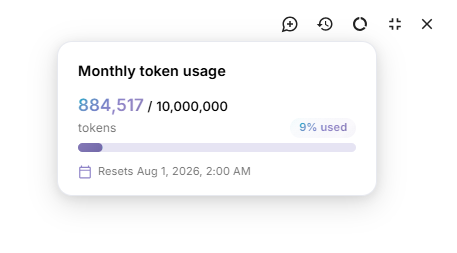
The panel shows:
- Tokens used / monthly limit, for example
884,517 / 10,000,000 tokens - Percentage used: how much of your monthly allowance you have consumed
- Progress bar: visual indicator of usage against the limit
- Reset time: when your monthly allowance refreshes
Token usage is shared across all your assistant conversations for the month. If you reach the monthly cap, new messages may be blocked until the limit resets. Check the usage panel for the exact reset time.
Your organization’s monthly limit is set by your administrator. The usage panel is for monitoring only. It does not let you change the limit.
Links in answers
When the assistant references Blindata assets, they appear as clickable cards with an icon and name. Click a card to open that asset in Blindata. Links to external websites open in a new browser tab.
In longer proposals, for example a drafted concept description, resource names inside the answer are also clickable so you can verify the target asset before applying a change.
Structured answers and visible steps
For questions that compare or list metadata across several assets, the assistant can return structured tables in the chat. Each row links to the relevant glossary or catalog resources, and you can copy or export the table from the response.
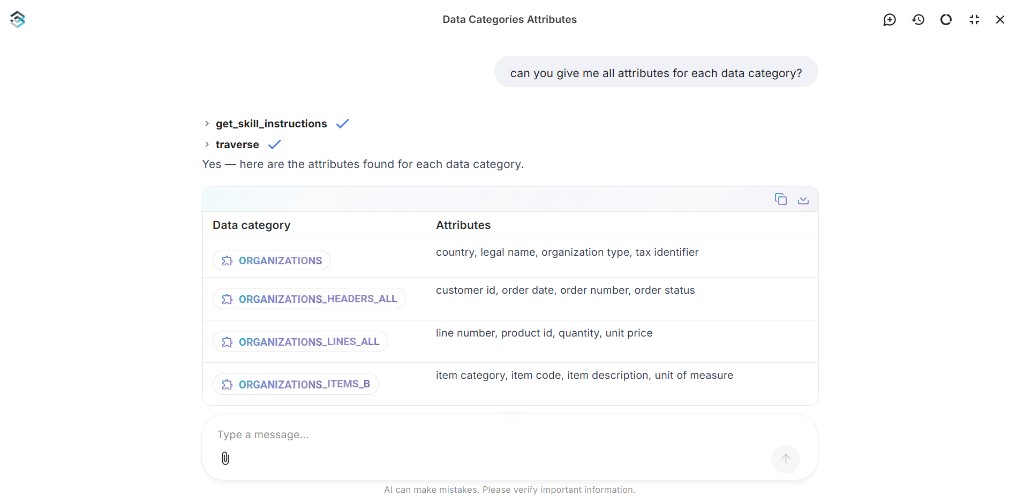
When the assistant looks up information in your organization, you may see completed steps above the answer, for example checks against search or relationships. These steps are a high-level view of what was consulted; they are not a verbatim log.
For stewardship drafts, especially descriptions and link proposals, the assistant often separates:
- The proposed text or mapping, ready to review or copy
- A short rationale, explaining why the draft fits the context, attachment, or governance scope
Review both before asking the assistant to apply a change or before copying text into Blindata manually.
Common questions
I do not see the sparkle icon
The assistant must be enabled for your organization. Contact Blindata support to request activation.
The assistant says it cannot find an asset
It only returns metadata that exists in Blindata and that your account can access. Try a broader question, a different name your organization uses, or check the asset in the UI first.
I reached my monthly token limit
Open the Usage panel in the chat header to see when your allowance resets. Token use is shared across all your conversations for the month.
The assistant made a change I disagree with
Continue in the same thread and ask for a revision. You can also open the resource card and edit the asset manually in Blindata.
Can it see data outside Blindata?
No. It works from your organization’s documented metadata and any files you attach to a message, not from live database contents unless that information is already captured in the catalog or lineage.
The assistant is temporarily unavailable
If the assistant cannot respond because of a temporary error, you may see a message in the chat or a notification prefixed with [Blindata assistant]:. Try again later, or contact Blindata support if the issue persists.