Chat with Your Data extends the Blindata AI Assistant from metadata stewardship to on-demand data exploration. Ask questions in natural language; the assistant explores what your organization has documented in Blindata, composes a grounded query, and asks for your approval before running it against a live system using your personal BYOC credentials.
Info
Availability: Chat with Your Data requires the Blindata AI Assistant, a paired Blindata Agent, and at least one User Principal connection linked to the target system. See Prerequisites below.
What is Chat with Your Data
Chat with Your Data lets you request information about your data in plain language. The assistant uses MCP tools to search the Business Glossary , Data Catalog , and related metadata in Blindata. Based on your question and what it finds, it composes a custom, read-only query (for example SQL for a PostgreSQL connection) and presents it in the chat for your review.
You approve or cancel execution on the query card. When you approve, the Blindata Agent runs the query with your stored credentials and shows the results as a table or chart in the chat.
This is different from Query generation , which produces a query draft for you to copy elsewhere. Chat with Your Data executes approved queries and displays live results in the UI.
Prerequisites
Before you can run queries from the assistant, confirm the following:
- The Blindata AI Assistant is enabled for your organization.
- A Blindata Agent is paired and reachable from Blindata.
- A User Principal connection exists on the agent and is linked to the target system in the catalog.
- You have saved your personal credentials under My credentials on the agent. See Bring Your Own Credentials (BYOC) .
- Enough metadata is documented in Blindata — systems, tables, fields, and semantic links — for the assistant to ground the query.
How it works
- You ask a data question in the assistant chat.
- The assistant searches Blindata via MCP tools — glossary concepts, systems, physical entities, fields, and semantic relationships — until every identifier needed for the query is confirmed.
- It composes a parametric, read-only query using only grounded catalog names and the target system’s dialect.
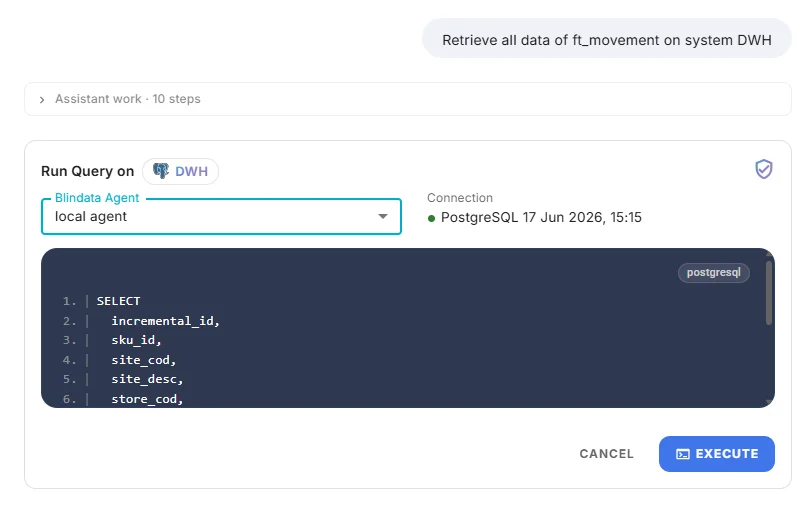
- A query execution card appears in the chat for your review.
- You click Execute or Cancel.
- On execute, the UI runs the query through the Blindata Agent using your stored credentials.
- Results render in the chat as a table or chart. By default, row data stays in the UI and is not sent back to the assistant.
Expand Assistant work · N steps above the response to see which MCP lookups the assistant performed before presenting the query.
How the assistant grounds your question
The assistant does not guess table or column names. Every table, column, join key, and parent system in the SQL must be confirmed from Blindata metadata before a query card is shown. If grounding fails, it explains what could not be resolved rather than presenting a speculative query.
Two grounding paths are used depending on how you phrase your question:
| You ask… | Grounding path | What the assistant does |
|---|---|---|
| Business terms only — “movement quantity by store code” | Ontology-first | Search the glossary → traverse concept relationships → bridge to physical tables and columns via semantic links |
Named tables, columns, or system — “from sales.fact_orders on DWH” |
Catalog-first | Anchor on named catalog assets, then bridge any business filter terms through the glossary when needed |
When your intent is clear — for example "{metric} by {dimension}", a top-N ranking, a trend over time, or a share/percentage breakdown — the assistant picks the visualization and aggregation without asking redundant clarifying questions.
Approving a query
The query execution card shows everything you need to review before running the query:
- Target system — the catalog system the query runs against (grounded from MCP metadata)
- SQL query — expandable recap with dialect chip
- Parameters — business bind values for the query
- Blindata Agent and Connection — selectors filtered to eligible User Principal connections linked to that system
- Execute and Cancel actions
If your credentials are missing or no eligible connection exists, the card provides links to set up credentials or configure agent connections.
Data privacy
By default, query results are not shared with the assistant. Only you see the data in the UI.
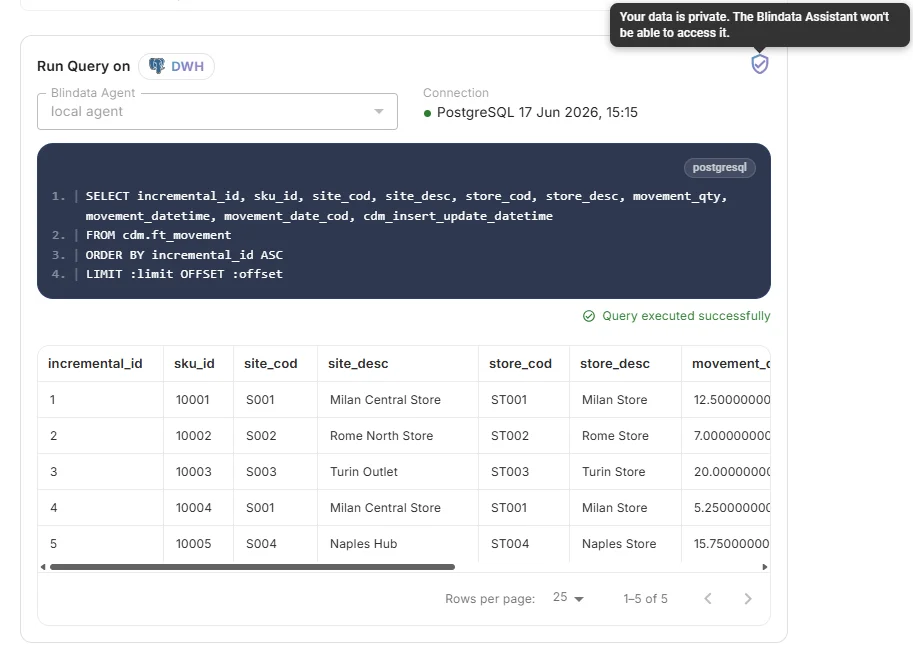
A privacy indicator appears in the top-right corner of the query execution card before you run the query, so you can see whether result data will be shared with the assistant before you approve execution. The same indicator remains visible on the result card after execution. Hover it for details:
- Shield icon (default): “Your data is private. The Blindata Assistant won’t be able to access it.”
- Cloud icon (when sharing is enabled): “May be shared with Blindata Assistant (the AI chat agent).”
Optional result sharing
When your administrator enables result sharing for the assistant, a bounded slice of executed result data may be returned to the assistant for follow-up questions in the same conversation. The indicator reflects this setting on both the execution and result cards.
Follow-up behavior
- Privacy on (default): after you execute a query, the assistant acknowledges that results appeared in the card but cannot see row values. To continue the conversation about the data, describe what you see or ask for a revised query.
- Sharing enabled: the assistant may summarize values from the returned slice only. Not all values may be shared with the assistant.
During the metadata exploration phase — before you approve execution — the assistant consults only catalog metadata through MCP tools, not live database contents.
Result formats
The assistant chooses one of four presentation formats based on your question:
| Format | Example questions |
|---|---|
| Table | Raw rows, all columns, export-style exploration, wide multi-column results |
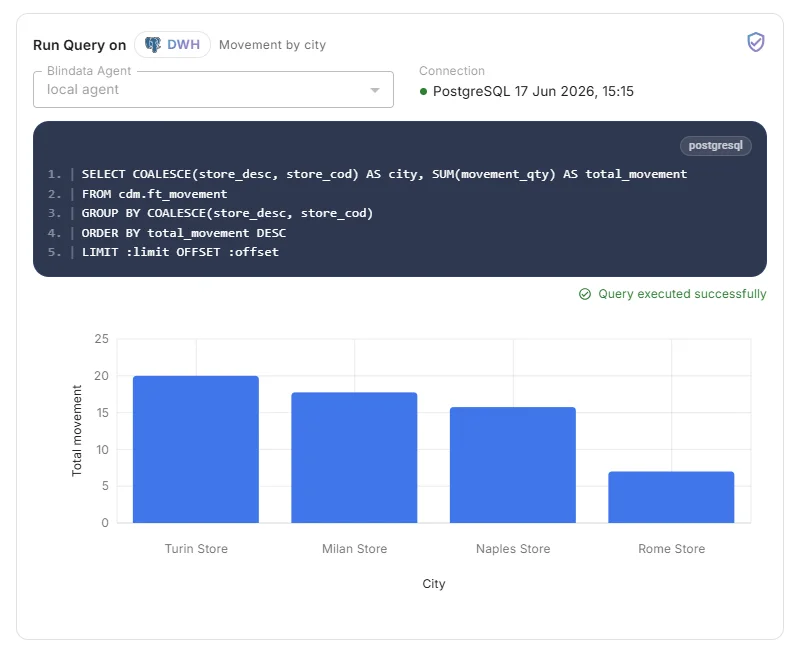
| Bar chart | “revenue by region”, “top 5 products by sales”, compare categories or rankings |
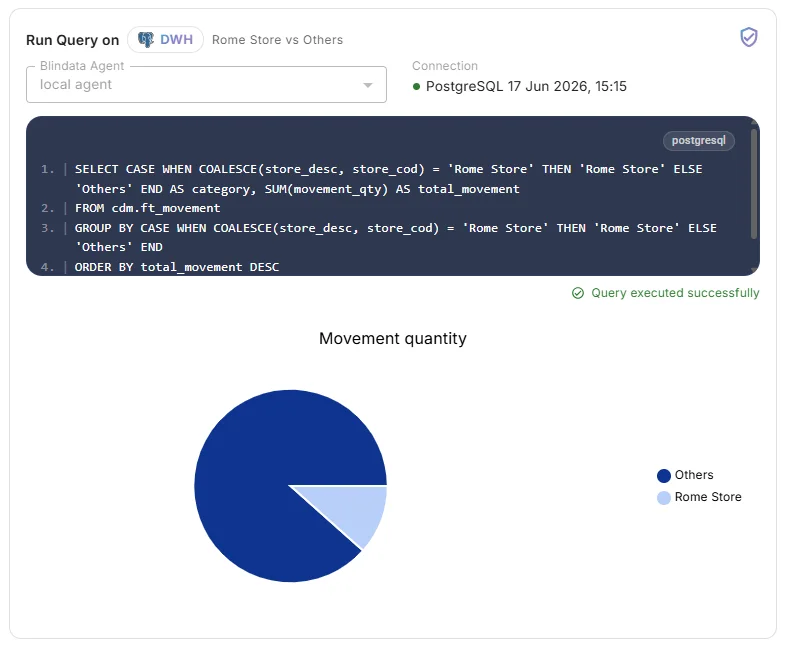
| Pie chart | “sales share by product variant”, breakdown, distribution, percentage language |
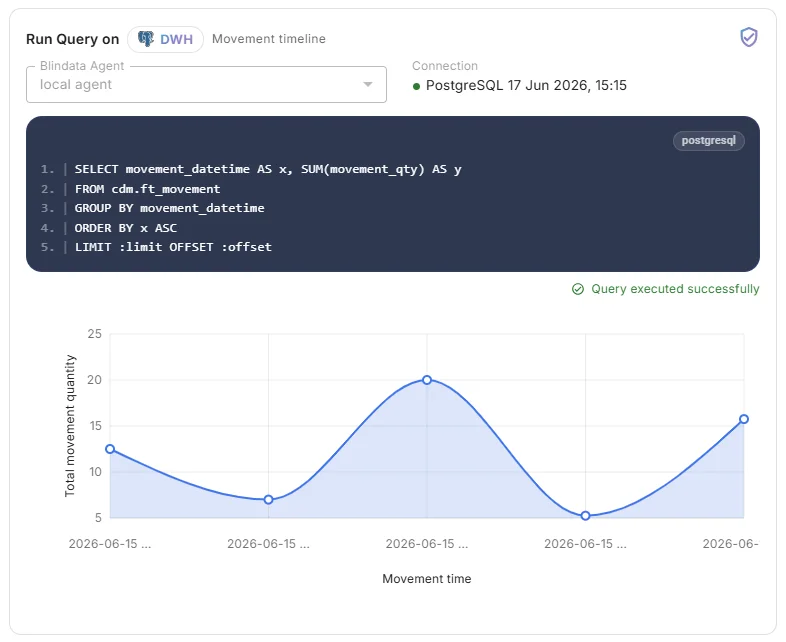
| Line chart | “trend over 3 years”, measure over time or an ordered sequence |
Table is the fallback when visualization intent is ambiguous. Share or percentage wording (%, share, breakdown, composition) selects a pie chart even when the question shape looks like "{metric} by {dimension}".
Bar chart
Pie chart
Line chart
Assistant work
Above each response, you may see an expandable Assistant work · N steps section. It shows a high-level view of the MCP lookups and reasoning the assistant performed — for example glossary searches, resource fetches, and relationship traversals.
This is not a verbatim log, but it helps you verify which catalog assets grounded the query before you approve execution.
What it will not do
- Invent table, column, or system names not documented in Blindata
- Execute a query without your explicit approval on the execution card
- Access live database contents during the metadata exploration phase — only catalog metadata is consulted until you approve execution
- Replace a dedicated SQL draft for copy-paste elsewhere (see Query generation )
Troubleshooting
No User Principal connection linked to the system
Ask your administrator to create a User Principal connection on the agent and link it to the target system in the catalog.
Your credentials are not configured
Open Settings > Agents, select the agent, and save your credentials under the My credentials tab.
The Blindata Agent is not available
Verify the agent is running, reachable from your network, and paired with your tenant.
Query execution failed
Review the SQL, your database permissions, and network reachability. You can report the error back to the assistant without sharing row data.
The assistant cannot ground your question
Improve catalog and glossary coverage, or add semantic links between business terms and physical assets. See How the assistant grounds your question .