Overview
Updating a blueprint means moving a data product that was already created from a blueprint onto a newer published version of that same blueprint.
Platform teams publish new blueprint versions when templates, infrastructure, or default configuration change. Domain teams do not have to recreate the data product or copy those changes by hand. The update proposes the new version next to the work already in the data product repository, so custom files and local edits can be reviewed before they are combined with the template.
What you get
- The data product stays the same catalog entry, in the same Git repositories.
- Template changes land on a dedicated update branch, tagged so the next update still has a clean baseline.
- Your own files and edits stay on the branch you are working on until you merge.
- A pull request (optional) shows exactly what the new version changes, including conflicts where your edits and the template touch the same lines.
What the update does not do
- It does not replace the branch you have open. That branch changes only when the pull request is merged.
- It does not create new repositories, and it does not switch the data product to a different blueprint.
- It does not resolve merge conflicts for you. Conflicts stay in the pull request for a person to decide.
The entry point is the blueprint icon in the Data Product Builder git bar. When a newer published version exists, the icon turns blue and shows a notification dot.
Before you begin
You can open the update wizard only when all of the following are true:
| Requirement | Why it matters |
|---|---|
| The data product was instantiated from a blueprint (or already updated once) | The repository must contain the checkpoint tag of the version it is on today, named blueprint-v plus that version (for example blueprint-v2.0.0). |
| A newer published version of the same blueprint exists | Unpublished branch work is not offered. Older versions are not offered either; this flow does not downgrade. |
| The git bar is on a branch, not a tag | That branch is the base of the pull request. A tag cannot be updated in place. |
| A Git provider secret is configured for your user | Blindata uses it to read the blueprint, push the update branch, and open the pull request. |
| You can edit this data product | See Permissions . |
If no newer version is available, or you do not have permission to update, selecting the blueprint icon opens the blueprint detail page instead of the wizard. If a Git tag is selected in the builder, switch to a branch first; the icon explains that in its tooltip and does not open the wizard.
Permissions
| Action | Required permissions |
|---|---|
| See the blueprint icon and open the blueprint detail | BLUEPRINTS_VIEWER |
| Run the update | BLUEPRINTS_VIEWER, DATAOPS_EDITOR, DATA_PRODUCTS_EDITOR, and write stewardship on the data product’s team |
Users with DATAOPS_ADMIN can run the update without the individual permissions above. For how these map to personas, see Personas and permissions
.
Update a data product
1. Open the wizard from the Data Product Builder
Open the data product in the Data Product Builder
and select the branch that should receive the update (usually the default branch, such as main).
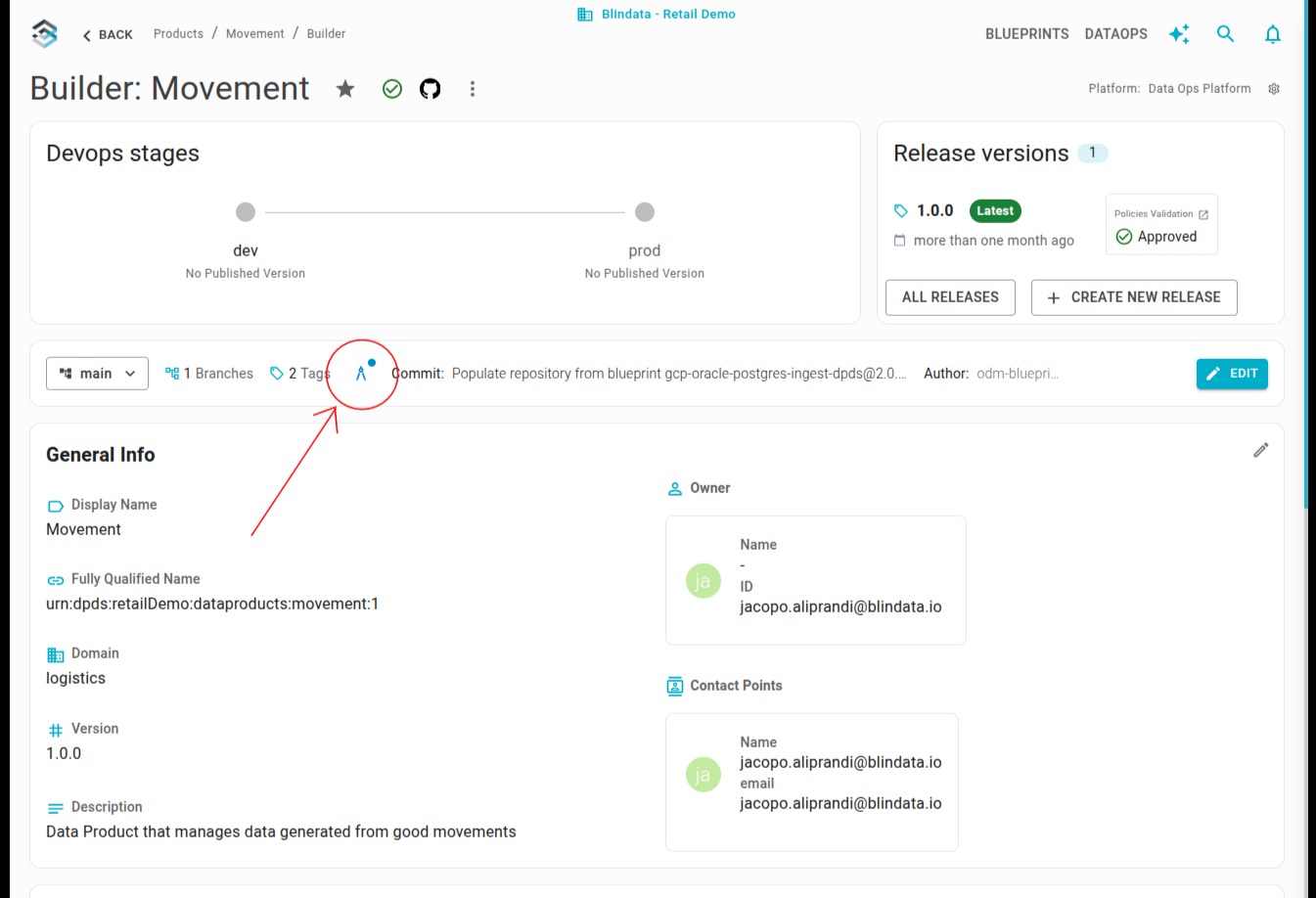
Select the blueprint icon in the git bar. When an update is available it is blue and carries a notification dot. The tooltip shows the blueprint name, the version currently recorded on the data product, and whether you can start the update.
2. Select the target blueprint version
The wizard title is Update data product from new blueprint version. Step 1 is Select target Blueprint Version.
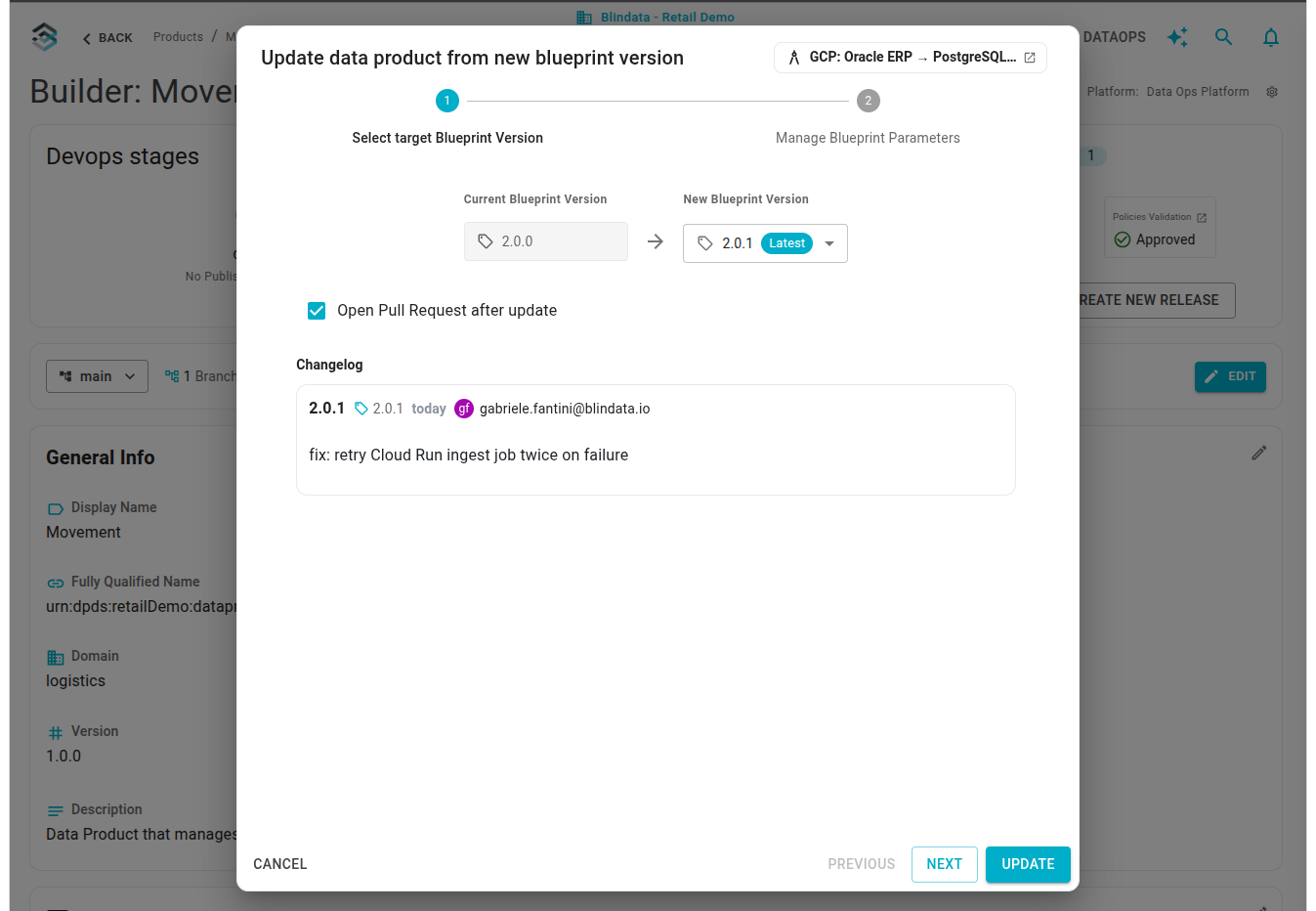
| Control | Behavior |
|---|---|
| Current Blueprint Version | The version recorded on this data product. It is shown for reference and cannot be edited. |
| New Blueprint Version | Published versions newer than the current one. The highest version is marked Latest and selected by default. You can pick an intermediate version instead of jumping to the latest. |
| Open Pull Request after update | Checked by default. When it is on, Blindata opens a pull request from the update branch into the branch selected in the builder. When it is off, Blindata still pushes the update branch and the checkpoint tag, and you open or merge the change yourself. |
| Changelog | Release notes of the versions from the one after your current version up to the version you selected (newest first, up to ten cards). Each card shows the version, the Git tag, when it was published, who published it, and the release notes. |
If your user has no valid Git secret for the blueprint provider, this step asks you to select or create one before NEXT is available.
Press NEXT.
3. Review blueprint parameters
Step 2 is Manage Blueprint Parameters. The form is built from the target version’s manifest, grouped the same way as instantiation
(ui.group). Required fields are marked, and the same validation rules apply.
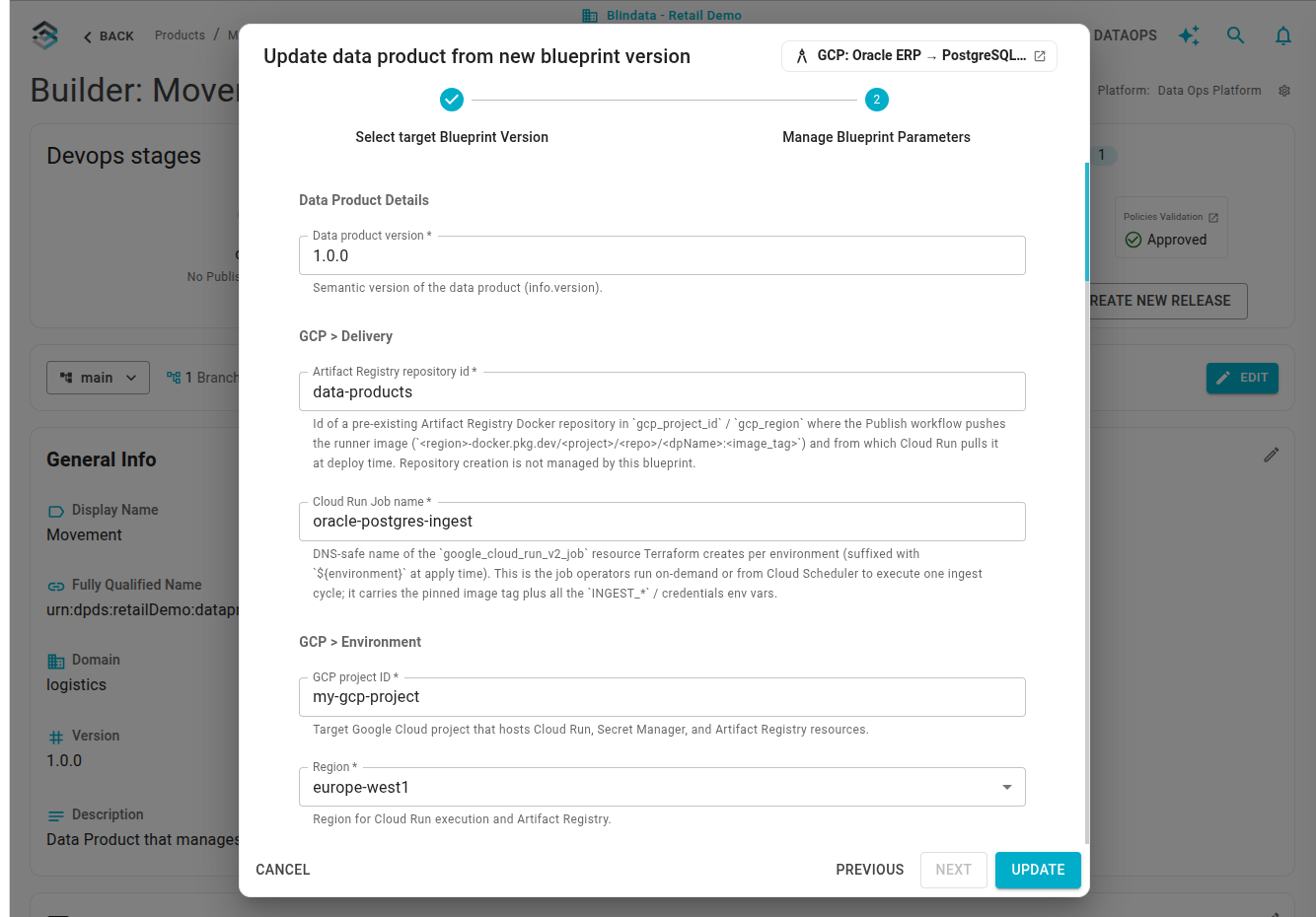
Values are filled in this order:
- The value already stored for that parameter on the data product.
- Otherwise, a value Blindata can derive (reserved parameters such as domain, name, and owner).
- Otherwise, the default declared on the new manifest.
A parameter that did not exist on the previous version is highlighted with a colored bar on the left, so new inputs stand out. Parameters removed from the new manifest are not shown and are not sent. Reserved parameters stay in a collapsed Reserved parameters section; leave them as they are unless you have a specific reason to override the catalog values.
Press UPDATE.
4. Wait for the update to finish
The dialog title switches to Updating Data Product. Two phases are shown:
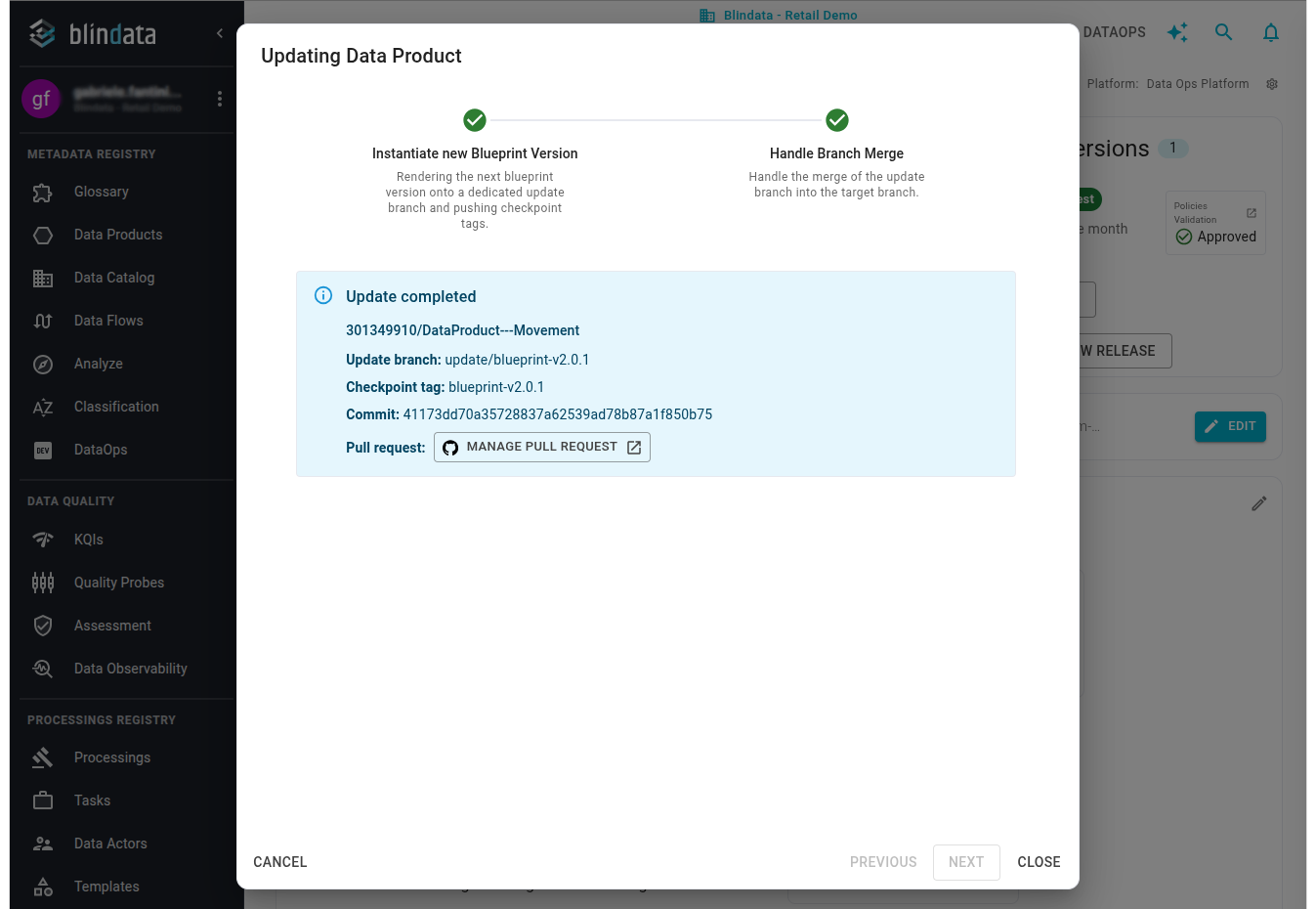
- Instantiate new Blueprint Version — the new version is rendered onto a dedicated update branch, committed, tagged, and pushed.
- Handle Branch Merge — the pull request into the branch you selected is opened when Open Pull Request after update is checked. Blindata does not merge that pull request.
When both phases are complete, Update completed lists, for each repository that changed:
| Field | Example | Meaning |
|---|---|---|
| Repository | acme/customer-analytics |
Target repository already linked to the data product. |
| Update branch | update/blueprint-v2.0.1 |
Branch that contains only the new blueprint render. |
| Checkpoint tag | blueprint-v2.0.1 |
Permanent tag on that pure render. Later updates start from this tag. |
| Commit | short Git commit id | Commit created on the update branch. |
MANAGE PULL REQUEST opens the pull request in your Git provider. If you cleared Open Pull Request after update, the same box offers Merge the update branch and links to the repository instead.
If the new render is identical to the current checkpoint, Blindata does not create an update branch or a pull request. It points the new checkpoint tag at the existing commit and shows a warning in this box. If pushing succeeded but opening the pull request failed, the update is still reported as completed and the warning explains that you need to open the pull request yourself.
Close the dialog when you are done. The builder stays on the branch you had selected. The blueprint version shown there changes after that branch contains the merge, not when the update branch is pushed.
5. Review and merge the pull request
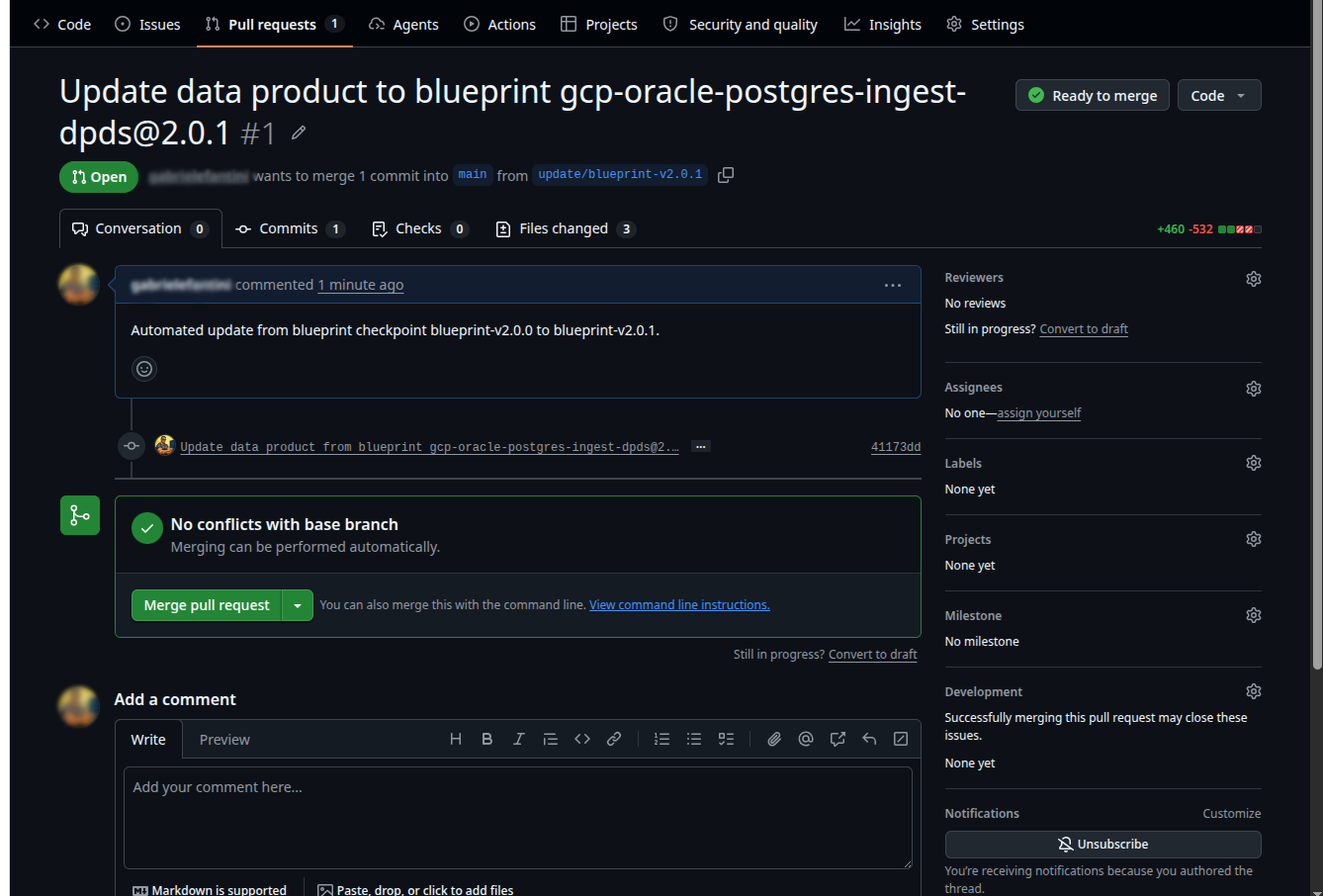
The pull request title is Update data product to blueprint {blueprint}@{version} (for example analytics-lakehouse@2.0.1). It proposes merging update/blueprint-v{version} into the branch you had selected in the builder.
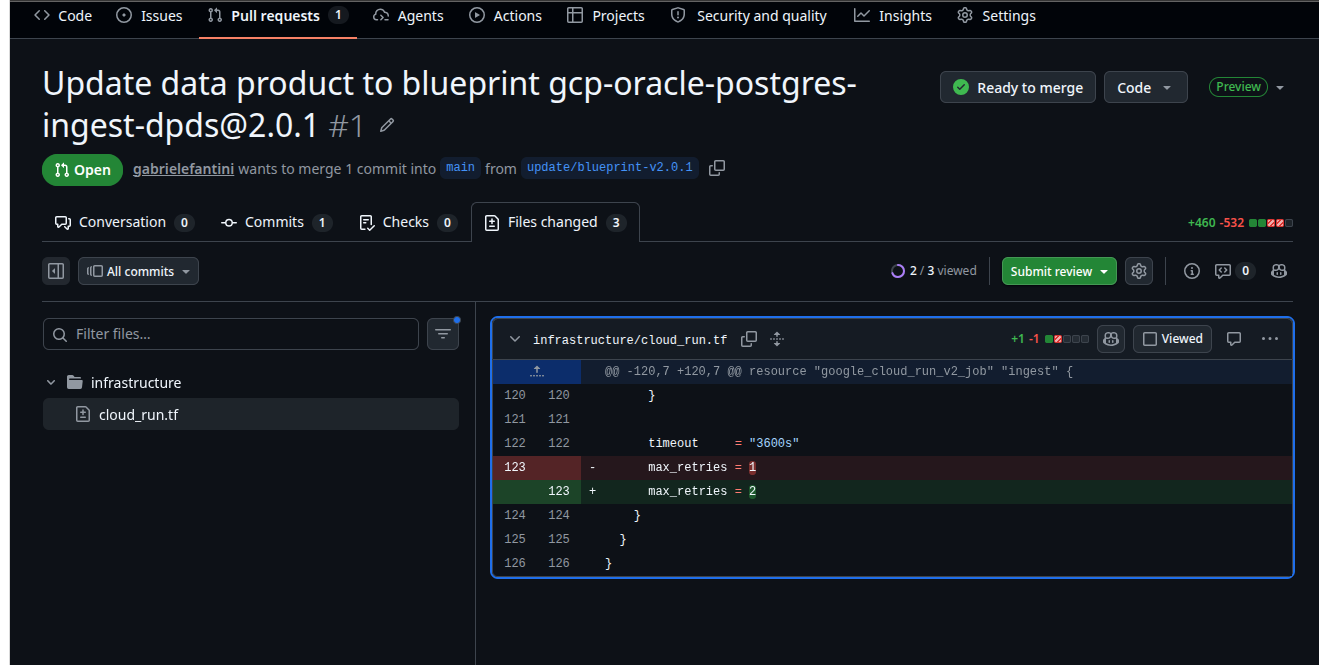
Files changed is the difference between your branch and the new blueprint render. Template and parameter changes appear as ordinary diffs (in the example, a Terraform max_retries value moves from 1 to 2).
- If Git can combine the template changes with your edits, the pull request reports no conflicts. Merge it when the diff looks right.
- If you edited the same lines the new blueprint version also changed, the pull request reports conflicts. Resolve them in the Git provider, then merge. Blindata does not pick a side for you.
- Files that exist only on your branch, and were never part of a blueprint render, stay. They are not deleted by the update.
- After the pull request is merged, delete the update branch in the Git provider if you no longer need it. The checkpoint tag must stay: the next update uses it as the baseline.
How the update is applied
This section is for platform engineers and anyone reviewing the Git result. It describes branch names, tags, and which manifest fields the update accepts.
Branch, tag, and pull request names
Names are fixed. They use the target blueprint version, not a branch name you choose.
| Git ref | Pattern | Example for version 2.0.1 |
|---|---|---|
| Checkpoint tag of the version you are leaving | blueprint-v{current} |
blueprint-v2.0.0 |
| Update branch | update/blueprint-v{next} |
update/blueprint-v2.0.1 |
| Checkpoint tag of the new render | blueprint-v{next} |
blueprint-v2.0.1 |
The commit message is Update data product from blueprint {name}@{current} -> {next}. The commit is attributed to the user who runs the wizard.
The pull request, when requested, uses:
- Title:
Update data product to blueprint {name}@{next} - Body:
Automated update from blueprint checkpoint blueprint-v{current} to blueprint-v{next}. - Head:
update/blueprint-v{next} - Base: the branch selected in the Data Product Builder for the root repository. Each additional repository uses that repository’s configured default branch.
Open Pull Request after update is one switch for the whole run. It does not merge the pull request and it does not delete the update branch. If the pull request cannot be opened after the branch and tag are already pushed, the update still succeeds and a warning is returned.
Running the update again for a version whose update branch or checkpoint tag already exists is rejected. Delete the leftover branch, or the tag that points at an abandoned attempt, and retry. Do not delete a checkpoint tag that is already the baseline of a merged update.
What is written, and what is left for the merge
For each repository declared by the manifest and already configured on the data product, Blindata:
- Reads the repository at the current checkpoint tag (
blueprint-v{current}), not at the branch tip. That tag is a pure render of the previous blueprint version, without files that existed only as local additions. - Clears the working tree and renders the next blueprint version with the parameters you submitted. Templates are processed the same way as on instantiation .
- On the root repository, rewrites the data product descriptor so its blueprint lineage points at the next version and the parameters used for this update, and stores a snapshot of that manifest under
.odm/blueprint/. - If the result differs from the current checkpoint, commits it on
update/blueprint-v{next}, tags that commitblueprint-v{next}, and pushes both refs. - If the result is identical, skips the branch and the pull request, and points
blueprint-v{next}at the same commit as the current checkpoint.
The update branch contains only that new render. Your branch is not modified. The pull request is a three-way merge:
| Side | Content |
|---|---|
| Common ancestor | The previous checkpoint tag (pure previous render). |
| Your branch | Previous blueprint output plus every commit your team added afterwards. |
| Update branch | Pure render of the next version. |
Git then applies the template delta onto your branch:
- A blueprint file you did not edit is updated to the new render.
- Edits on different lines of the same file are combined.
- Edits on the same lines become a conflict in the pull request.
- A file you added outside the blueprint is kept, because it was never part of the checkpoint.
- A file the new version no longer generates is proposed for deletion. If you also edited that file, the pull request conflicts and you choose whether to keep it.
Nothing is force-pushed onto the branch you selected.
Manifest fields that affect an update
The next version must use spec: odm-blueprint-manifest. Parameters are validated against that version (type, required, default, pattern, min / max, allowedValues). Blank values fall back to the manifest default.
An update is content and parameter change. The repository layout must stay the same between the current version and the next one. If it does not, the update is rejected and you need a new instantiation (or a manual repository setup) instead. How each repository key gets its own update branch, and which branch that pull request targets, is described in Multi-repository handling .
| Must stay the same | May change |
|---|---|
targetRepositories[].key set, including which entry has isRoot: true |
Parameter values and parameter declarations (new keys, removed keys, defaults, validation) |
Root instantiation routes: repository key, sourcePath, and destinationPath |
Template file contents |
Each composition[].module alias and its blueprintName |
A composed module’s blueprintVersion |
Each module’s instantiation routes (repository key, sourcePath, destinationPath) |
composition[].parameterMapping |
| Single-repository vs multi-repository layout, and whether composition is used | Release notes and version number |
Every repository key declared on the next manifest must already be configured on the data product. The update does not create repositories. A composed module must already be published, must be a module (not a standalone blueprint), and must use the same Git provider as the parent. A module cannot be updated on its own; the update always starts from the parent blueprint recorded on the data product.
protectedResources does not change what the update writes or how the pull request merges. Declared paths are rendered again with the rest of the template. Those paths are checked later, when a data product version is published and protected-resource validation is enabled: publication compares the published tree with a fresh render of the recorded blueprint version and parameters. Keeping a local edit on a protected path can make that publication check fail even though the update pull request merged. See Protected resources
.
If the update fails
The dialog stops on the failed phase and offers Retry, which returns you to the form. Typical causes:
| Situation | What to do |
|---|---|
| Parameters or the selected version are rejected | Adjust the form. The message names the manifest rule that failed, including a layout change between versions. |
| The blueprint or version no longer exists | Open the blueprint detail and confirm the version is still published. |
| Git authentication failed | Check the Git secret used by your user, then retry. |
| The update branch or the next checkpoint tag already exists | Remove the conflicting branch or tag in the repository, then retry. |
| The current checkpoint tag is missing | The repository was not instantiated with checkpoint support, or the tag was deleted. Restore blueprint-v{current} or re-instantiate onto a repository that has it. |
| This blueprint layout cannot be updated | The version is a module, or it has no descriptor template. Update the parent blueprint that owns the data product. |