Before you begin
Before registering a blueprint you need:
- A Git repository — either already populated with your blueprint content (manifest, templates, IaC, notebooks, pipelines) or an empty one that Blindata will create for you.
- A valid
manifest.yamlat a known path in that repository. See Blueprint Structure for the full schema. - A personal secret configured for the Git provider used by the Blueprint service (e.g. a GitHub Personal Access Token). Personal secrets are managed from your user profile and are referenced in the registration wizard by their type.
Labels are optional. They are chosen from a shared catalog taxonomy (groups such as Development Status or Product Type). See Blueprint labels .
Register a new blueprint
The Blueprint catalog is the central place where all registered Blueprints are listed and managed.
It acts as a self-service marketplace for data product templates, where users can browse available Blueprints, understand their purpose and configuration, select a specific version, and launch the instantiation process.
For platform teams, the catalog is also where Blueprints are:
- Maintained and documented
- Versioned and published
- Controlled and shared across the organization
- Categorized with labels so teams can filter what they need
The Blueprint catalog is reached from DataOps in the left-hand sidebar and from Blueprints in the upper navbar. It lists every registered blueprint in the current tenant with name, short description, and a direct link to the detail page.
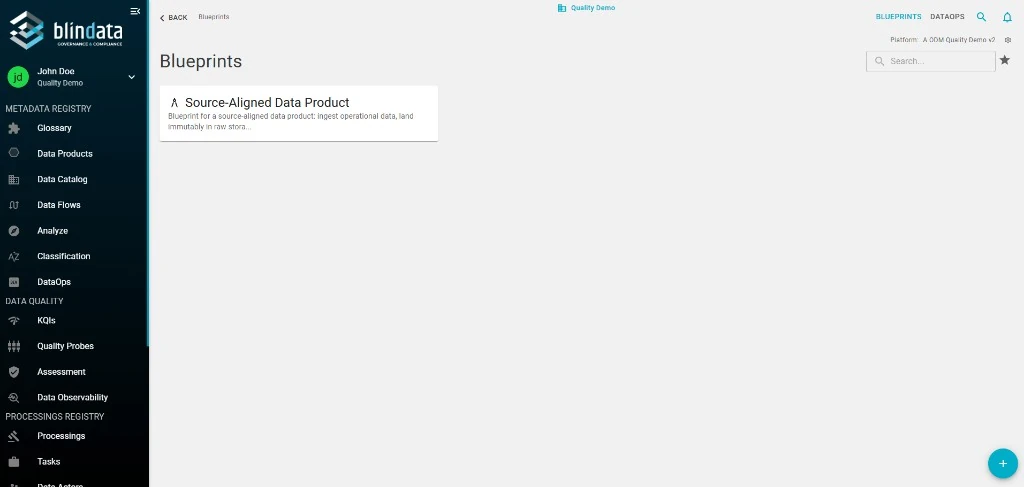
Open a blueprint to reach its detail page. The header shows the blueprint name, creation/update timestamps, a version selector (defaulting to the latest release), and the actions available to the current user.
The detail page exposes two tabs:
-
Documentation - Renders the
README.mdshipped with the selected blueprint version. Use this as the primary place to describe what the blueprint provisions, its pre-requisites, and any post-instantiation steps.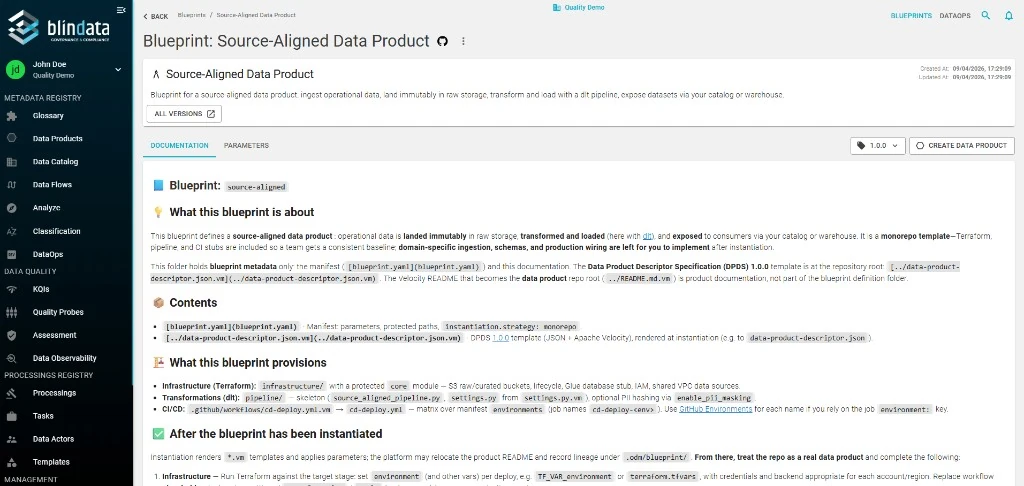
-
Parameters - Renders, from the manifest, every parameter the user must provide at instantiation time, grouped by the
ui.groupvalues declared in the manifest. Each row shows the description, type, default value, required/optional flag, and validation rules.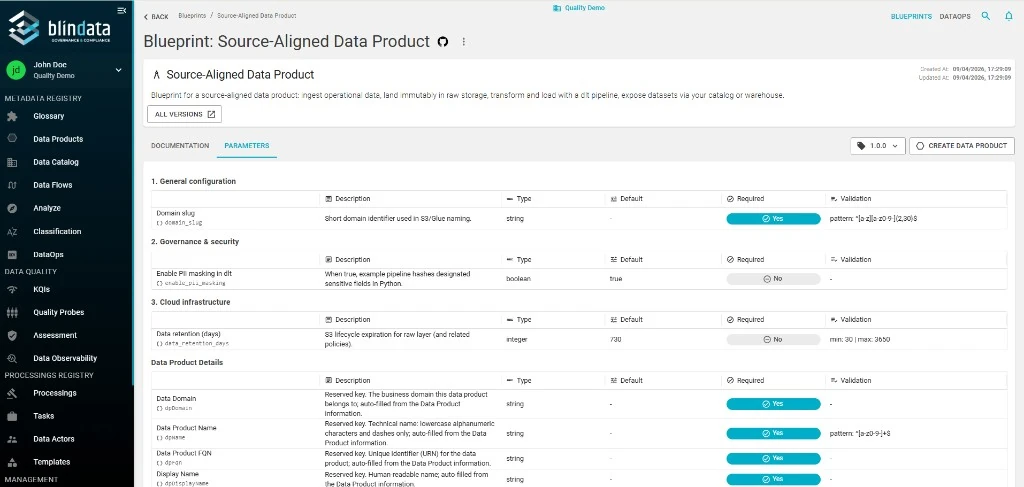
From the top right you can:
- Switch version - Pick any published version of the blueprint; the Documentation and Parameters tabs re-render against the selected version.
- ALL VERSIONS - Jump to the versions list for the blueprint (see Publish versions ).
- CREATE DATA PRODUCT - Start the instantiation wizard with the current blueprint and version pre-selected.
Registration wizard
To register a new blueprint click the floating + button in the bottom right corner and fill in the three-step wizard described below.
The registration dialog is a single scrollable form. You choose the type, then fill in identity, labels, secrets, and repository settings. Repository settings appear after a Git secret is selected.
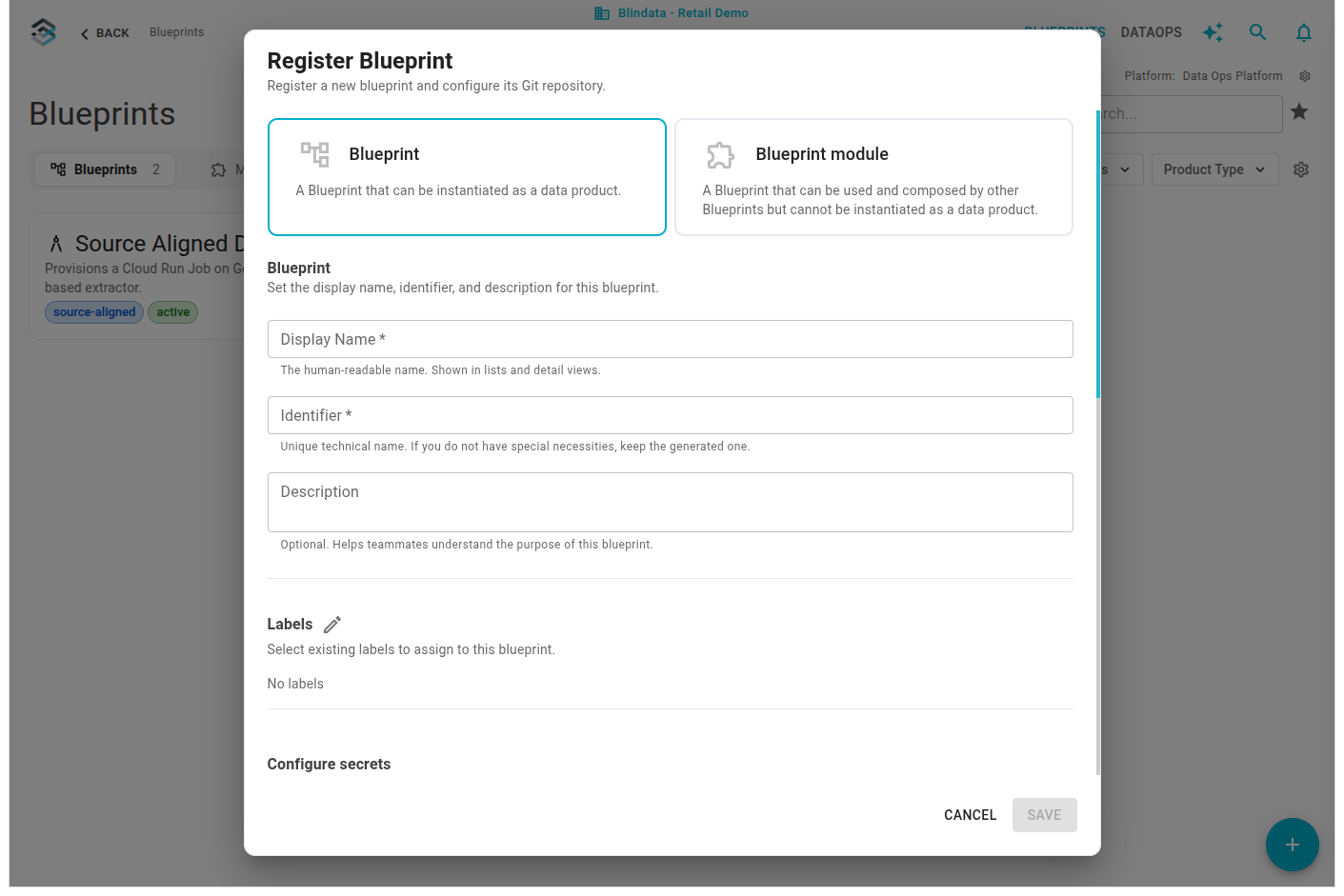
Type
The first choice sets how the catalog entry can be used.
| Type | What it is for |
|---|---|
| Blueprint | Can be instantiated as a data product. |
| Blueprint module | Used and composed by other blueprints. It cannot be instantiated as a data product. |
The dialog title follows the choice: Register Blueprint or Register Blueprint module.
Blueprint identity
Define how the blueprint is presented and identified in the catalog.
| Field | Description |
|---|---|
| Display Name (required) | Human-readable name shown in lists and in the detail view. |
| Identifier (required) | Unique technical name. Blindata auto-generates it from the display name; keep the generated value unless your organization has a specific naming convention. |
| Description | Short summary shown on the catalog card and at the top of the detail page. |
Labels
Optional. Choose from the shared taxonomy during registration; you can change assignments later from the blueprint configuration. See Blueprint labels .
Configure secrets
The Blueprint service uses your personal secrets to authenticate against the Git provider. The wizard displays one row per secret type (e.g. github-pat); for each row pick the stored secret Blindata should use.
Manage secrets from your user profile: create a new one on the fly with the + button, or edit an existing one with the pencil icon.
Repository settings
After a secret is selected, pick the Git repository that will host the blueprint content. You can either create a new one or point Blindata to one you already own.
Create new repository
Blindata will create the repository in your provider on save, using the credentials provided in the step before.
| Field | Description |
|---|---|
| Organization (required) | Git provider organization or account that will own the repository. |
| Repository Name (required) | Name of the new repository. Defaults to the blueprint identifier. |
| Repository Description | Optional. Shown in your Git provider next to the repository. |
| Visibility | Repository visibility (e.g. Private, Public). |
Select existing repository
Choose this option when the repository already contains your blueprint content or when it is prepared by another automation.
| Field | Description |
|---|---|
| Organization (required) | Git provider organization or account that owns the repository. |
| Repository (required) | Existing repository that will hold the blueprint manifest and templates. |
Advanced settings
The Advanced Settings panel lets you override where Blindata looks for the manifest and related files inside the repository. All fields have defaults and can be left unchanged for standard setups.
| Field | Default | Description |
|---|---|---|
| Manifest Branch | main |
Branch where Blindata reads the blueprint manifest. Usually the default branch. |
| Manifest Path (required) | blueprint/manifest.yaml |
Path to the blueprint manifest, relative to the repository root. |
| Descriptor Template Path | descriptor.json.vm |
Path to the Apache Velocity descriptor template. Shown for a Blueprint, where it is required so Blindata can generate a Data Product Descriptor. Hidden for a Blueprint module. |
| Readme Path | blueprint/README.md |
Path to the README rendered in the Documentation tab of the blueprint detail page. |
Press SAVE to register the blueprint. On success Blindata validates the manifest, creates the catalog entry, and redirects you to the blueprint detail page, where you can publish the first version .
Blueprint labels
Labels categorize blueprints and blueprint modules in the catalog so teams can filter and discover templates by maturity, product type, or other dimensions your organization defines. Labels are optional catalog metadata: they are not part of the blueprint manifest.
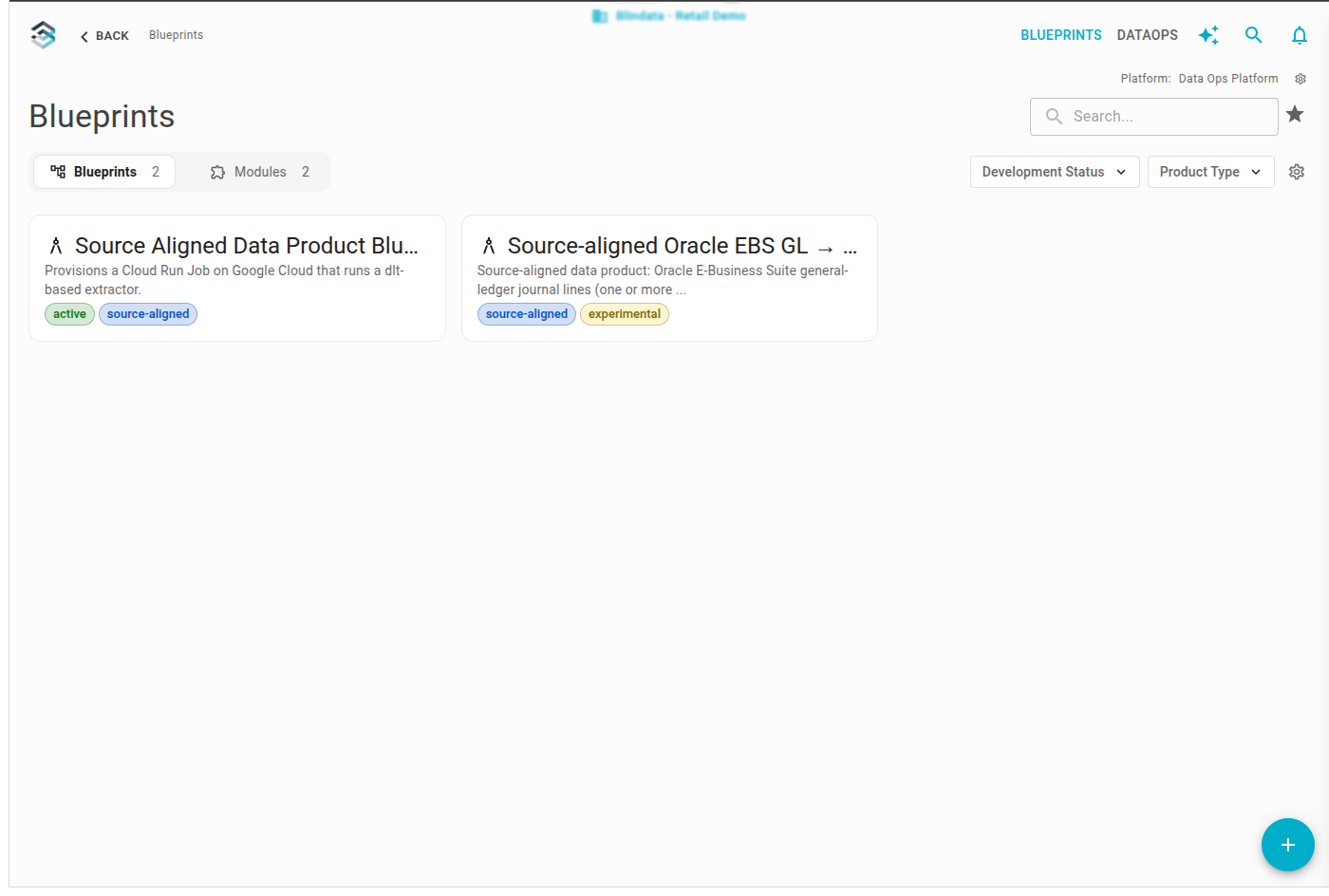
Each label has a name, color, optional description, and optional group. Ungrouped labels are treated as Other. On catalog cards, labels appear as chips (tooltips show group and description); the blueprint detail page shows the full set.
Taxonomy and assignment
The taxonomy is the shared list of label definitions everyone draws from. Groups are not maintained on their own—a group name exists when at least one label uses it. Typical examples:
| Group | Example values |
|---|---|
| Development Status | active, experimental |
| Product Type | source-aligned |
Platform Engineers with BLUEPRINTS_EDITOR assign labels when registering a blueprint or when editing its configuration. Assignment always selects from existing taxonomy entries; saving replaces the blueprint’s full label set without changing the shared definitions.
Maintaining the taxonomy—creating labels, editing names, groups, colors, or descriptions, and removing labels—is done from Manage labels on the blueprint catalog and requires BLUEPRINTS_ADMIN. Labels are shared assets: changing a definition updates every blueprint that uses it, and deleting a label removes it everywhere. Who assigns labels versus who owns the taxonomy is described in Personas and permissions
.
Discovery in the catalog
The catalog lists Blueprints and Modules separately. Group filters let viewers narrow the list: at most one label per group can be selected, and choosing labels in several groups shows only entries that include all of them. A blueprint may carry multiple labels from the same group even though the filter selects one value at a time. Identifier search is exact and case-insensitive and works together with the tab and label filters. Unlabeled blueprints remain visible when no label filter is applied. Browsing and filtering require BLUEPRINTS_VIEWER.
| Action | Permission |
|---|---|
| See chips and filter the catalog | BLUEPRINTS_VIEWER |
| Assign or change labels on a blueprint | BLUEPRINTS_EDITOR |
| Create, edit, and delete labels and groups | BLUEPRINTS_ADMIN |
For permission definitions, see Blueprint permissions and Users and Access .