We’re excited to introduce the Blindata AI Assistant, a chat panel built into the Blindata UI that helps you carry out stewardship work in plain language. Curate ontologies from documents and images, create data quality checks, and analyze and import lineage from scripts and Excel files, all without switching to another tool. This release also expands MCP connection and tooling options and improves CSV export performance.
Your assistant inside Blindata
The assistant opens as a sidebar from the sparkle icon in the top-right toolbar. Keep working in Blindata while you chat, or expand to fullscreen when you need more space. It uses the same platform access and permissions as the rest of Blindata, and when it references an asset you see clickable cards that open it directly so you can verify what it found or changed.
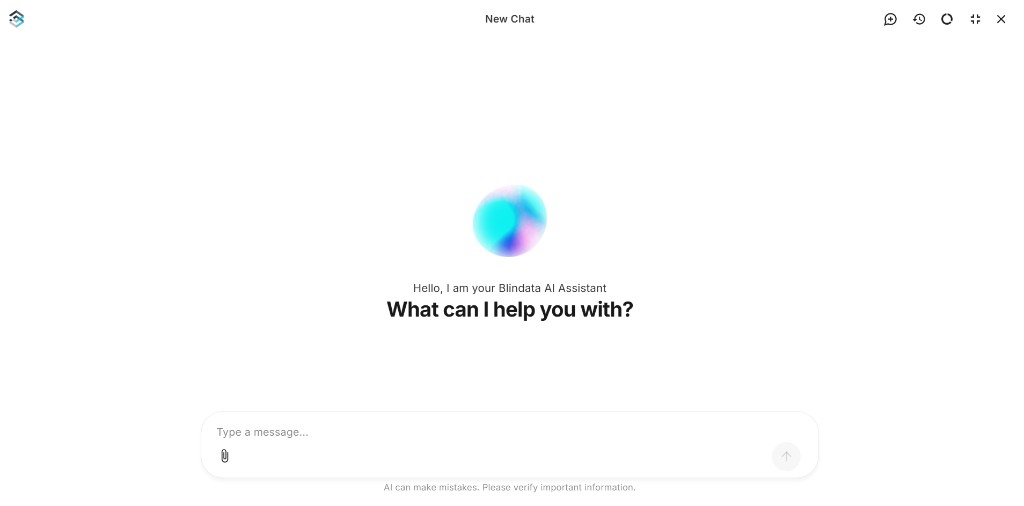
Key capabilities
- Curate ontologies from files, images, and documents: Attach PDFs, images, diagrams, or text files and ask the assistant to draft concepts, attributes, namespaces, and relationships grounded in your source material.
- Create data quality checks: Define and register quality checks against catalog assets through natural language, then review the results in Blindata before treating them as final.
- Analyze and import lineage from scripts and Excel: Share SQL scripts, ETL snippets, or spreadsheets and have the assistant extract, map, and import lineage into your organization.
Get started with the Blindata AI Assistant guide , explore What You Can Do , and try the Example Conversations .
Page context and quick actions
Open the assistant from a concept, namespace, table, column, or data product page and it inherits that page as context. The active resource appears as a chip in the input bar, so follow-ups stay focused without repeating the asset name.
On a new chat with page context, quick actions offer starter prompts for common stewardship tasks, for example Explore concept, Add description, or Link to tables, depending on the resource type you are viewing.
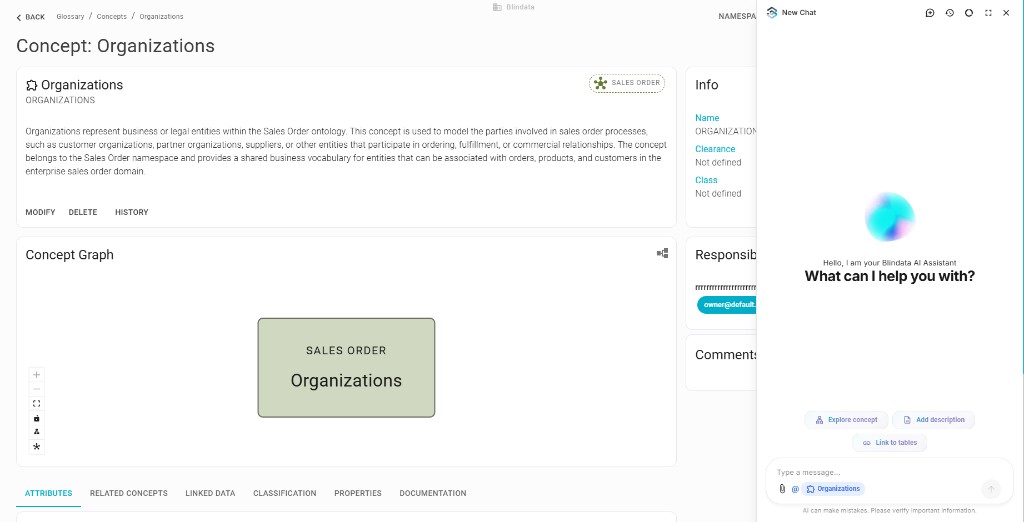
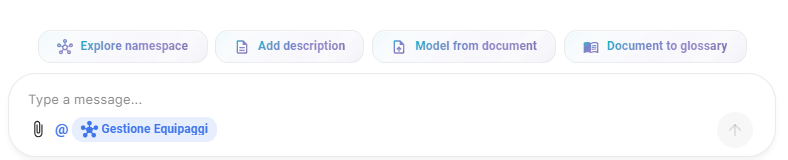
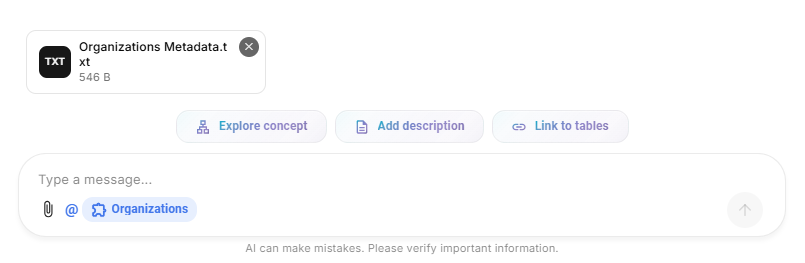
Combine page context with file attachments and a short instruction to draft ontologies, quality checks, or lineage mappings from both your source material and the asset on screen.
Structured answers, history, and usage
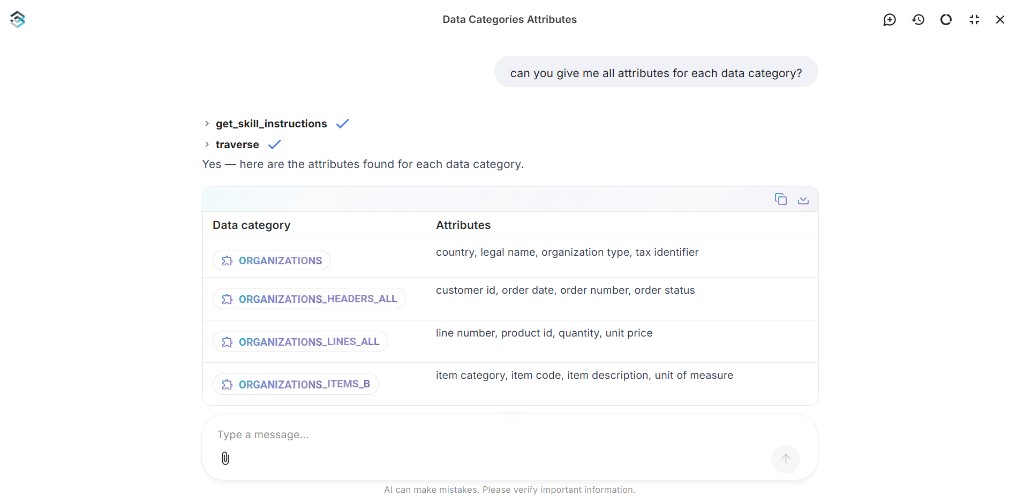
For questions that compare or list metadata across several assets, the assistant can return structured tables you can copy or export, with rows linking back to glossary and catalog resources. When it looks up information, you may see completed steps above the answer so you know what was consulted.
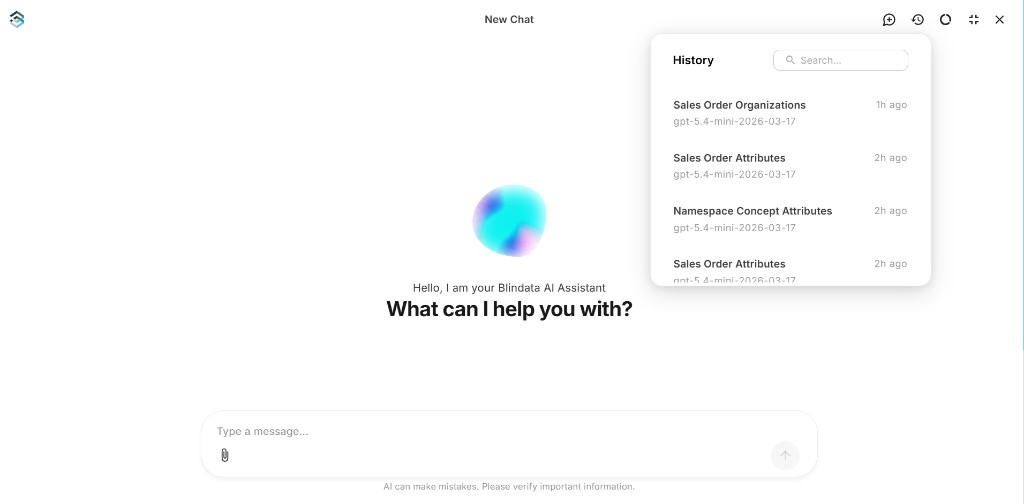
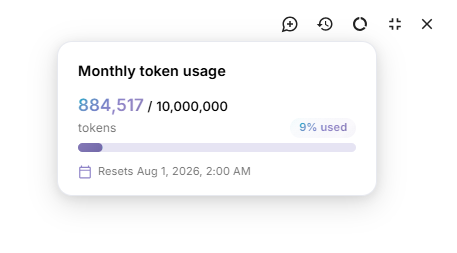
Browse, search, rename, and delete past conversations from the History panel, and monitor monthly token usage from the Usage panel in the chat header.
The assistant speeds up drafting and discovery; it does not replace your judgment. When it creates or updates metadata, open the resource cards and review the result, and remember the in-chat notice that AI can make mistakes.
Step-by-step UI guidance is in Using the Assistant .
Blindata AI Assistant vs. MCP Server
Both connect AI to your Blindata organization, for different situations:
- The Blindata AI Assistant is the in-app chat for day-to-day governance, ideal for data stewards, catalog owners, and business users who want to work in natural language without leaving Blindata.
- The MCP Server connects external AI tools (such as Cursor, Claude Desktop, or VS Code) to Blindata through the Model Context Protocol.
They use the same platform access. The main difference is where you start the conversation.
Other Key Updates
-
MCP connection modes (CIMD, DCR, and pre-registered clients): Desktop AI clients can connect through Blindata OAuth with clearer setup paths. CIMD (Client ID Metadata Documents) is the automatic path for Claude Desktop; DCR (Dynamic Client Registration) is the automatic path for Cursor and VS Code; tenants that keep automatic registration off can use a pre-registered OAuth client created in Blindata Settings. CIMD and DCR are tenant security settings disabled by default and enabled by Blindata support. Connecting Your AI Client
-
MCP quality tools, relationship batching, and traverse:
get_json_schemaandwrite_resourcenow cover data quality resources (QUALITY_CHECK,QUALITY_SUITE,QUALITY_PROBE_DEFINITION,QUALITY_PROBE_PROJECT) as well as social resources (ISSUE,COMMENTS,DOCUMENTATION).get_relationshipsaccepts batched filters and multiple result types in one call. The newtraversetool explores multi-hop lineage, ontology, or data product dependency graphs from a seed and returns nodes, edges, and context in a single response. MCP Tool Reference -
CSV export performance: Exporting large CSV downloads from Blindata is faster and more responsive, so governance and catalog exports complete with less waiting on big result sets.
-
Semantic Search providers: Semantic Search can use Gemini and custom embedding endpoints in addition to OpenAI. Configure the provider under Search Settings. Search Configurations
-
Agent interface tables for SQL crawling: A new interface-tables pattern documents how Blindata Agent can crawl SQL metadata through staging tables, alongside existing JDBC connectors. Interface Tables
Versions
- blindata-api: v1.180.0
- blindata-ui: v1.170.0
- blindata-mcp: v0.1.7