This release brings Bring Your Own Credentials (BYOC) to Blindata Agent connections, so each user authenticates with their own identity, and Chat with Your Data in the Blindata AI Assistant for on-demand exploration of live systems. The assistant can also suggest and implement quality checks, from definitions through probe automation, grounded in your ontology and catalog metadata. Quality probe project schedules can now always run against the latest created tag, and data product quality annotations can be tested directly inside the Data Product Builder.
Bring Your Own Credentials (BYOC)
BYOC lets administrators define how to connect to a system while each authorized user stores their own credential values. This is useful when every user must authenticate with their personal database account or service identity.
BYOC uses the User Principal authentication mode on Agent connections. It differs from Service Principal, where one shared set of credentials is stored on the connection, and from legacy connections where username and password sit inline on the connection itself.
Administrator setup
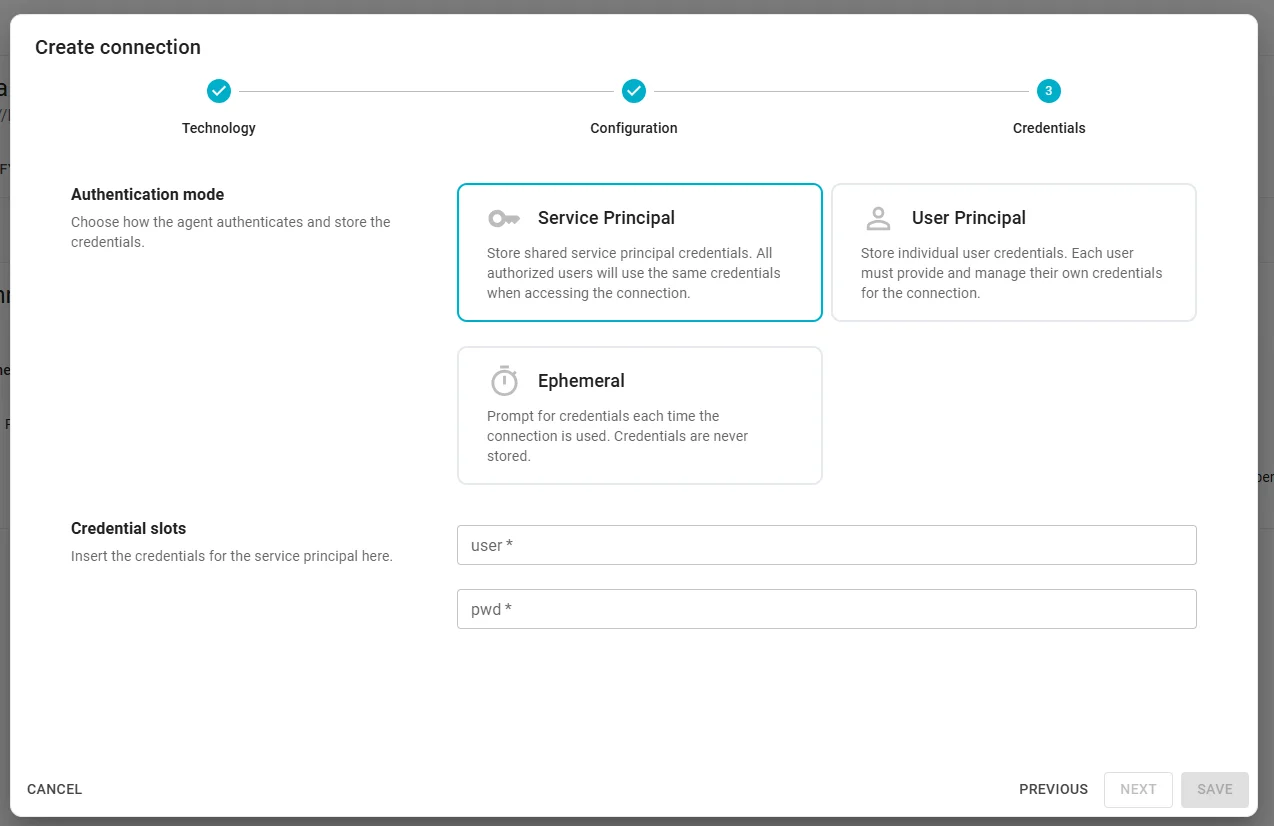
- Create a new connection using the connection wizard.
- On the Configuration step, verify or adjust the Credential slots (default JDBC slots are
userandpwd). - On the Credentials step, select User Principal.
- Save the connection — no end-user credential values are required at this stage.
End-user setup
After a BYOC connection is saved, each user provides their own credentials:
- Navigate to Settings > Agents and select the agent.
- Open the My credentials tab.
- Locate the connection, click Set credentials, enter values for each credential slot, and save.
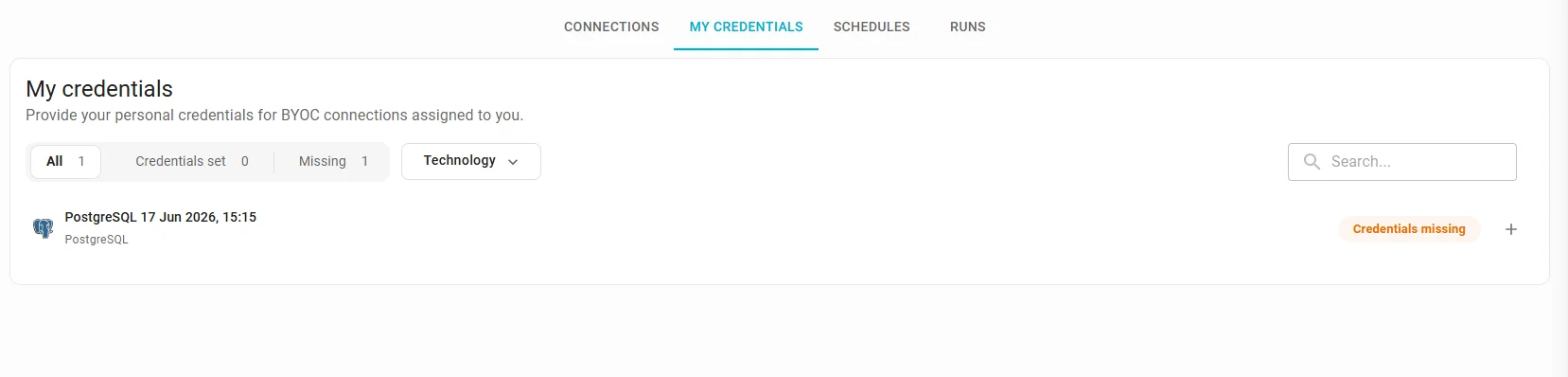
Credential values are encrypted per user and cannot be viewed after they are saved. Once set, you can test the connection from the My credentials tab. BYOC connections also power Chat with Your Data in the Blindata Assistant.
Get the full walkthrough in Manage Connections — Bring Your Own Credentials .
Chat with Your Data
Chat with Your Data extends the Blindata AI Assistant from metadata stewardship to on-demand data exploration. Ask questions in natural language; the assistant explores what your organization has documented in Blindata, composes a grounded query, and asks for your approval before running it against a live system using your personal BYOC credentials.
How it works
- You ask a data question in the assistant chat.
- The assistant searches Blindata via MCP tools — glossary concepts, systems, physical entities, fields, and semantic relationships — until every identifier needed for the query is confirmed.
- It composes a parametric, read-only query using only grounded catalog names and the target system’s dialect.
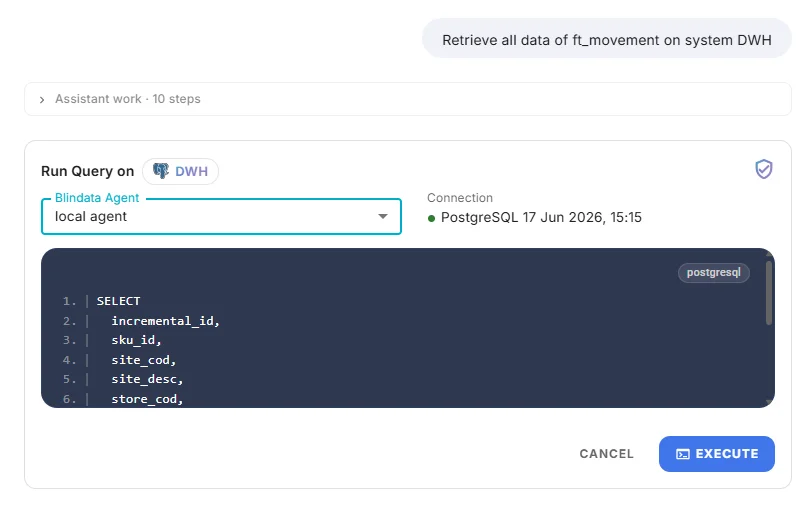
- A query execution card appears for your review (target system, SQL, parameters, agent, and connection).
- You click Execute or Cancel.
- On execute, the Blindata Agent runs the query with your stored credentials.
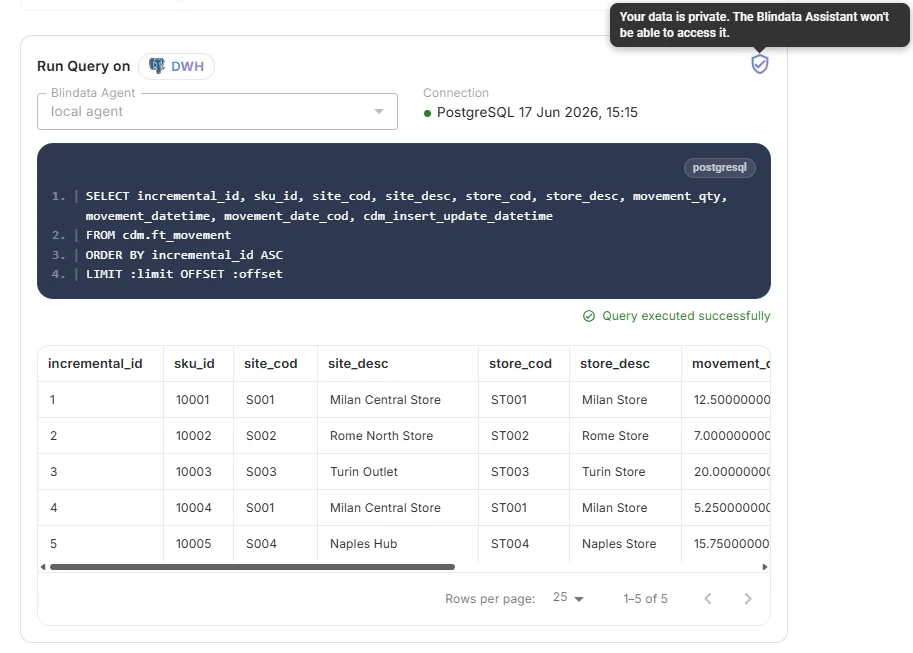
- Results render in the chat as a table or chart. By default, row data stays in the UI and is not sent back to the assistant.
This is different from query generation , which produces a draft to copy elsewhere. Chat with Your Data executes approved queries and displays live results in the UI.
Grounding and privacy
The assistant does not guess table or column names. Every identifier in the SQL must be confirmed from Blindata metadata before a query card is shown. Business-term questions follow an ontology-first path; named tables or systems follow a catalog-first path.
By default, query results are private: only you see the data in the UI. A privacy indicator on the execution and result cards shows whether sharing with the assistant is enabled.
Result formats
Depending on your question, results can appear as a table, bar chart, pie chart, or line chart:
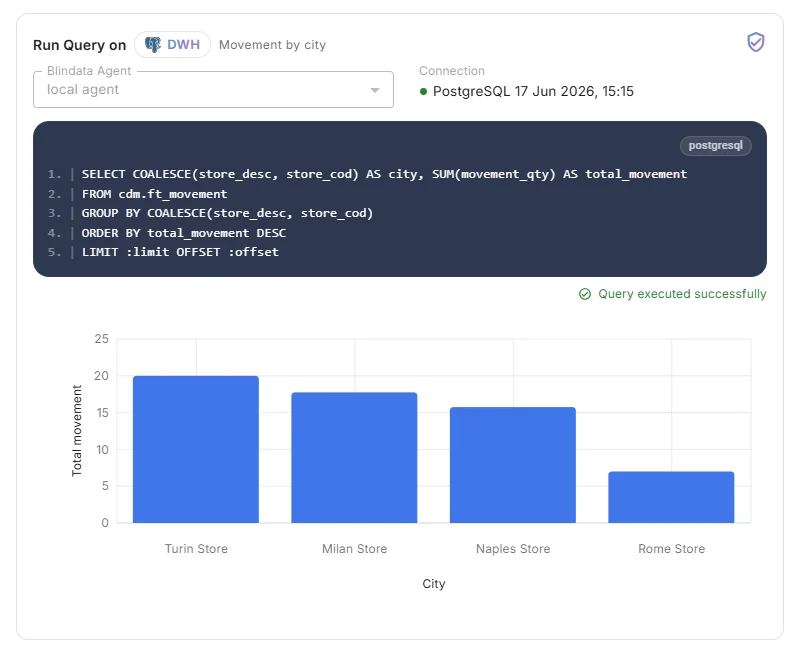
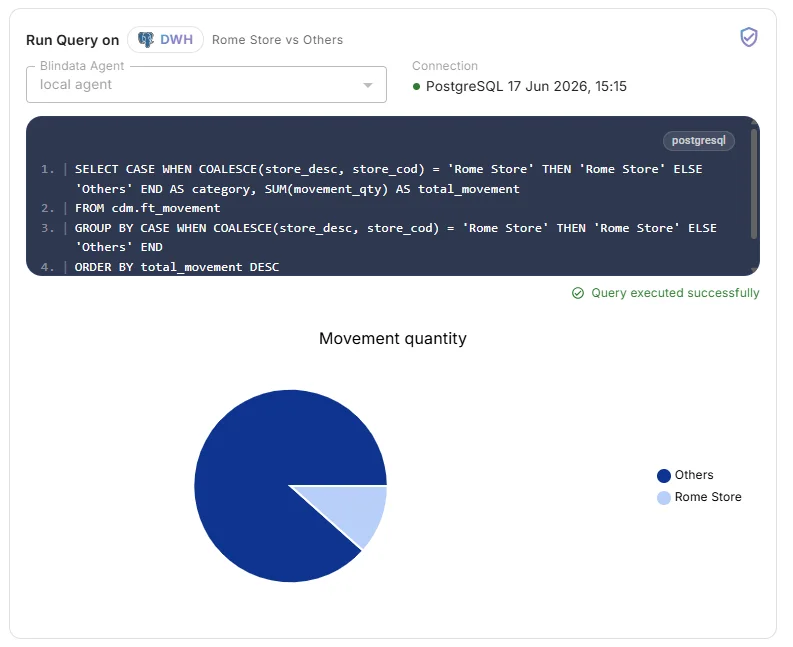
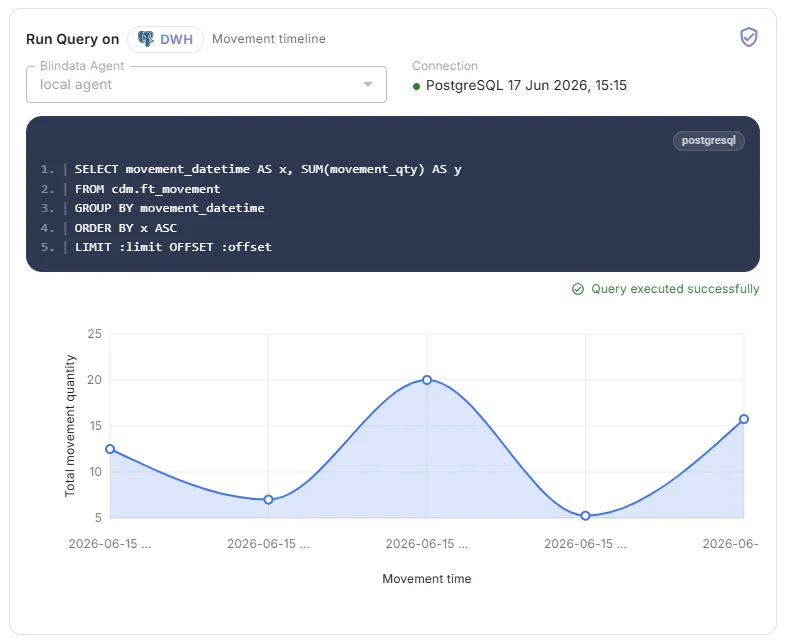
Prerequisites: Blindata AI Assistant enabled, a paired Blindata Agent, at least one User Principal connection linked to the target system, and your personal credentials under My credentials.
Full guide: Chat with Your Data .
Other Key Updates
-
AI Assistant: suggest and implement quality checks: The Blindata AI Assistant can now propose quality check definitions (suites and checks) grounded in ontology and technical metadata for a table, column, or data product, then persist them after your confirmation. In a follow-up, it can implement those checks with quality probes and probe projects (
CONTRACT_RULE,SINGLE_METRIC,DOUBLE_METRICS,RECORDS_COMPARISON,TABULAR_METRICS), reusing related suites and projects when they already exist. Proposals appear as reviewable batch tables before any write; nothing is created without your explicit apply step. Key Quality Indicators , Quality Probes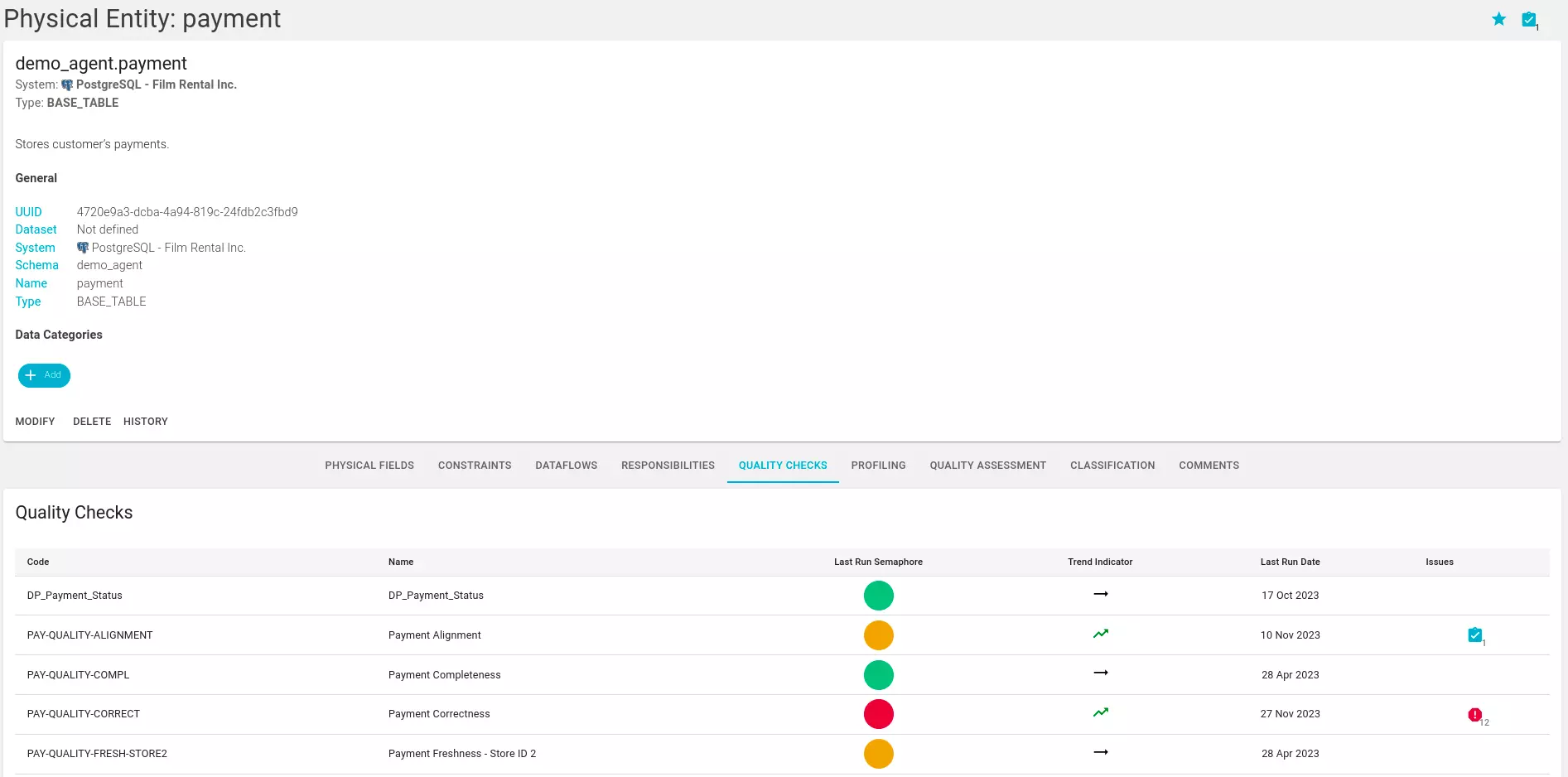
-
Quality probe schedules: always use the latest tag: When scheduling a quality probe project, you can enable Use latest tag instead of pinning a specific tag. At every run the Blindata Agent resolves the project’s most recently created tag and executes that snapshot, so creating a new tag advances the next execution without editing the schedule. Pinned-tag schedules remain available. Probes Execution — Scheduling a Project
-
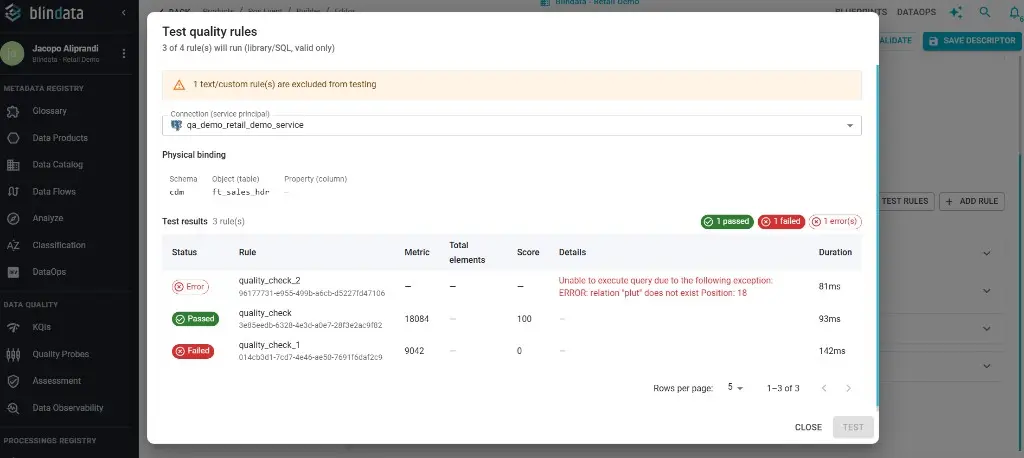
Data Product Builder: test quality annotations: You can dry-run library and SQL quality rules from the Builder editor with TEST RULES. Pick a service-principal Agent connection and physical binding, then review Passed / Failed / Error results (metric, score, details, duration) without leaving the descriptor. Text and custom rules stay on the contract but are excluded from this test flow. Edit a Data Product Descriptor — Quality annotations
Versions
- blindata-api: v1.182.0
- blindata-ui: v1.175.0
- blindata-agent: v1.34.0
- blindabot: v1.4.1
- blindata-mcp: v0.3.0