The Ontology Graph Editor is a visual tool for creating and editing your Business Glossary. You work with concepts, attributes, and relations in business language—the editor does not display RDF triples or semantic syntax.
For design principles (when to use inheritance, anti-patterns, naming), see Ontology Modeling Guidelines . For object definitions and CSV/Turtle workflows, see Namespaces, Concepts, Attributes and Predicates .
When to use the Graph Editor
| Task | Graph Editor | Concept detail pages | CSV / Turtle |
|---|---|---|---|
| Explore relationships visually | Best choice | Limited | No |
| Add a few concepts or relations | Good | Good | Overkill |
| Define inheritance hierarchies | Good | Good (dedicated UI) | Good for bulk |
| Bulk import from spreadsheet | No | No | CSV Import |
| Import external ontology | No | No | Turtle import |
Note
Viewing the graph requires VIEWER on CONCEPTS. Editing requires EDITOR on CONCEPTS. When Stewardship ACL is enabled, edits also require an assigned responsibility on the namespace or concept. See Permissions .
Open the editor
The Graph Editor is available wherever the graph icon appears in the Business Glossary module. Click it to open the editor for that scope.
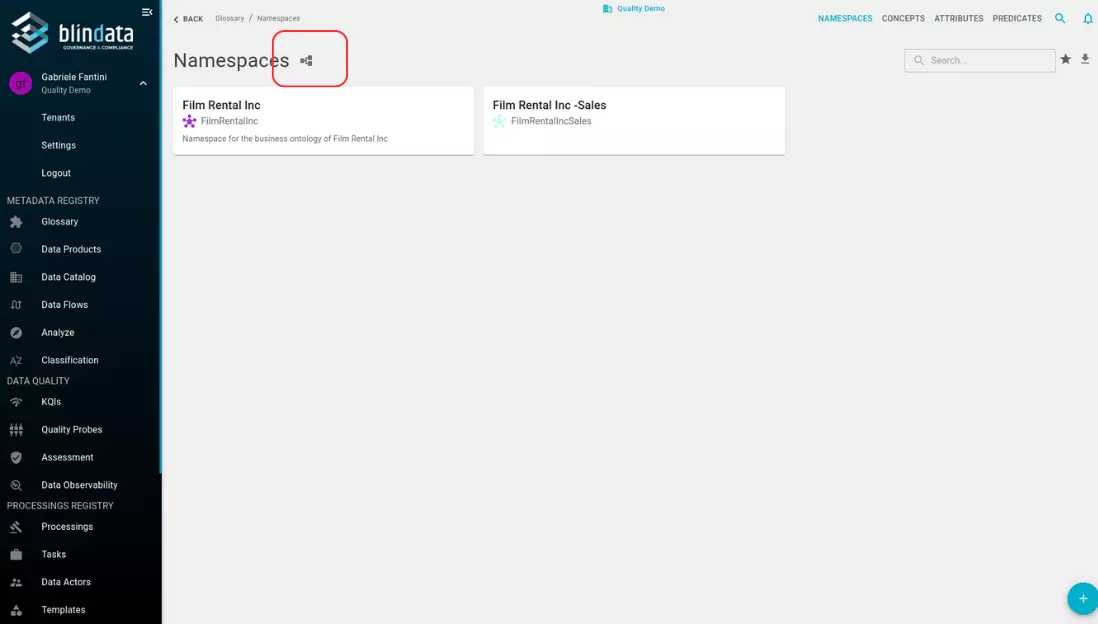
Visualization granularity
- Complete view — All ontologies across namespaces. Open from the Namespaces or Concepts list pages.
- Namespace view — Single namespace. Open from the namespace detail page.
- Concept view — One concept and its neighbors. Open from the concept detail page (under the attributes section).
Start with a namespace or concept view when modeling; use the complete view to understand cross-namespace connections.
Add a concept
Right-click an empty area in the graph and add a new concept. The concept is created in the namespace of the current view.
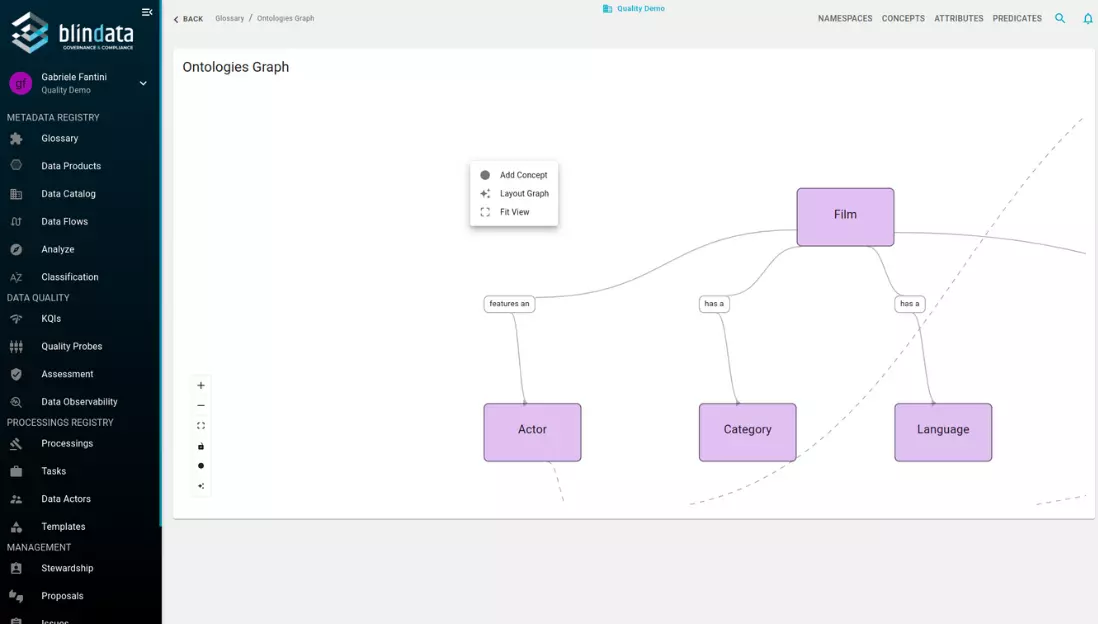
For namespace-level fields (identifier, description) and CSV export, use the concept list and detail pages .
Add an attribute to a concept
Right-click a concept node to open its context menu:
- View Summary — Open the concept detail with its attributes.
- Add Attribute — Associate an existing attribute or create one linked to this concept.
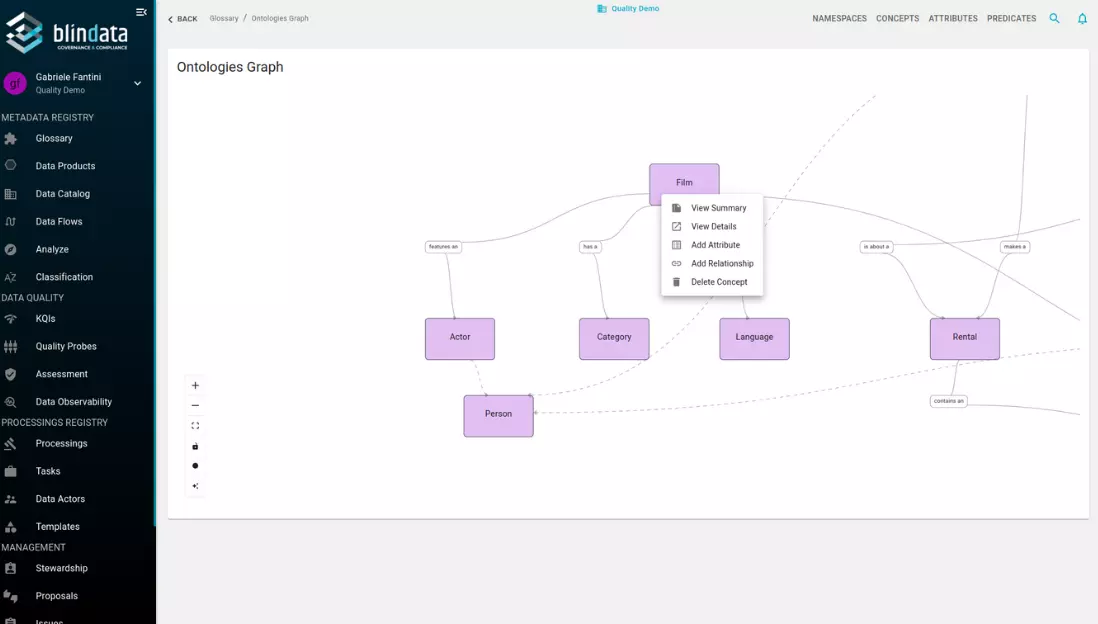
Standalone attributes (shared across concepts) can also be created from the Attributes section. See How to create an Attribute without an owning Concept .
Define inheritance
Inheritance (parent/child between concepts) can be defined from the concept detail page with dedicated UI. See How to define Concept Hierarchies .
Inherited attributes and relations appear when you expand or navigate the graph. Use inheritance only when a child concept truly is a specialized type of the parent—see Inheritance guidelines .
Handle relations between concepts
To connect two concepts:
- Right-click the source concept and select Add relationship.
- Draw the link to the target concept (or attribute) using the editor’s linking feature.
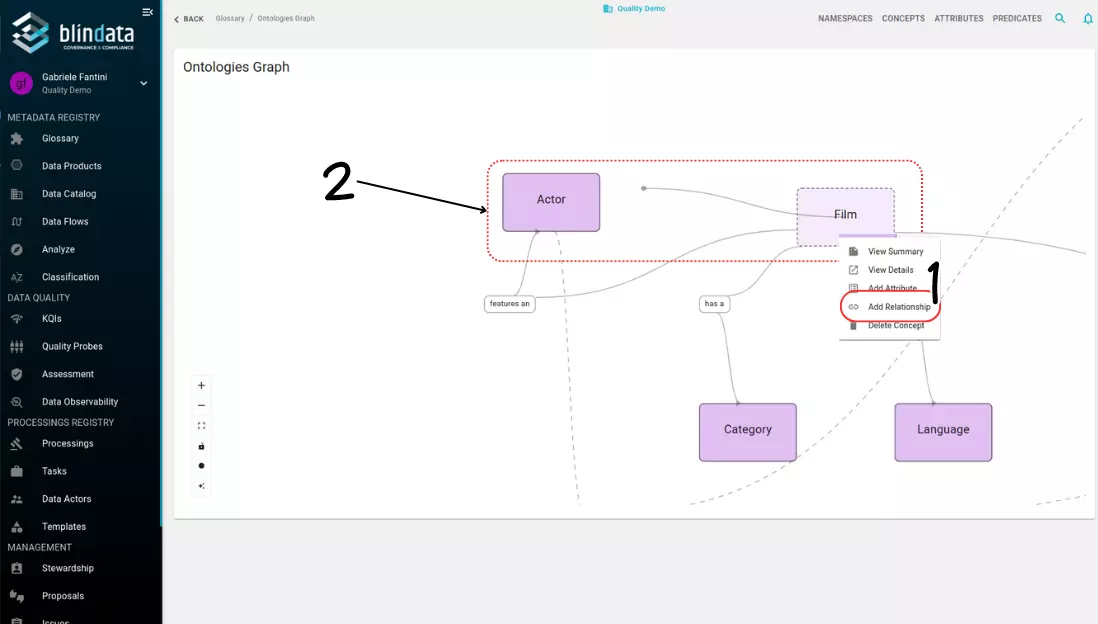
Relations use predicates (for example, placesOrder, hasInvoice). Predicates can be typed at creation time or registered
later for reuse.
Blindata supports three relation types—Inheritance, Schema Property, and Statement—described in Use of a Predicate in a relationship .
Select a graph layout
Choose a layout from the buttons at the bottom left of the screen:
- Dagre layout — Top-down hierarchical layout. Best for smaller graphs and inheritance-heavy models.
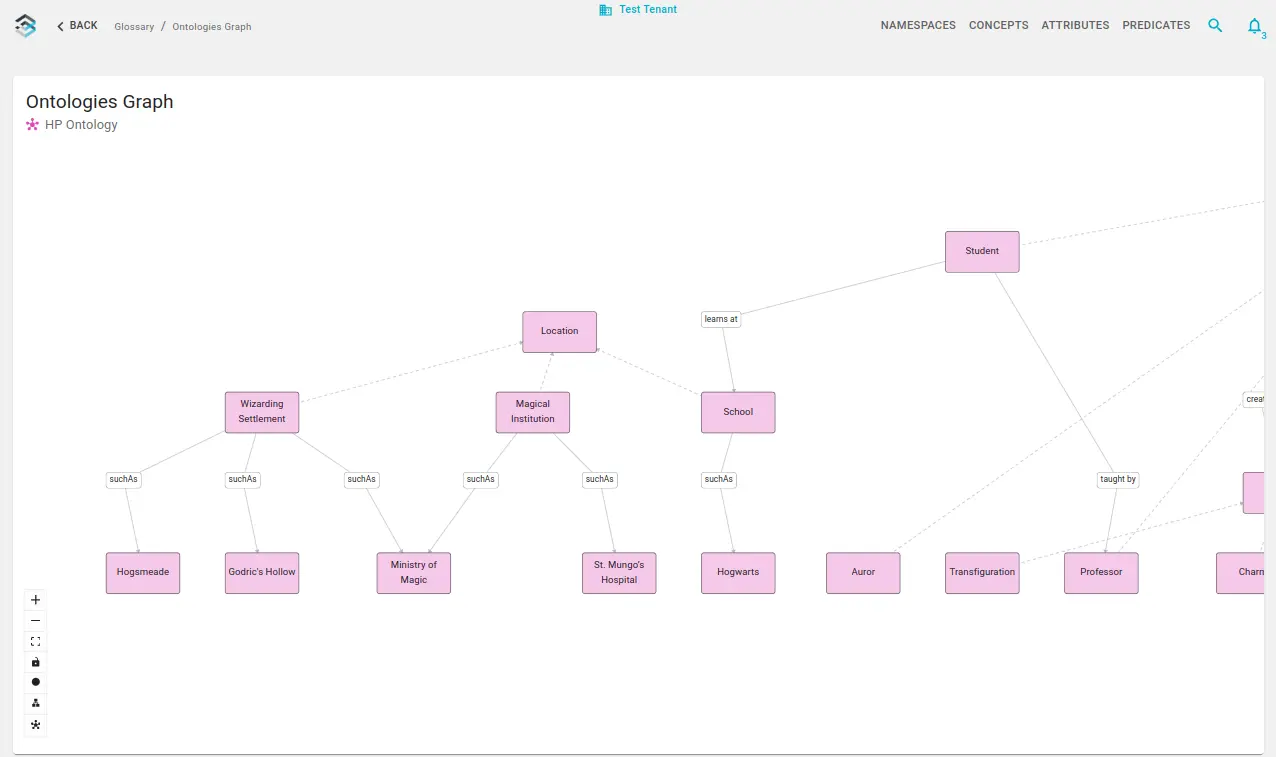
- Force layout — Force-directed layout that clusters connected concepts. Best for larger, densely connected graphs.
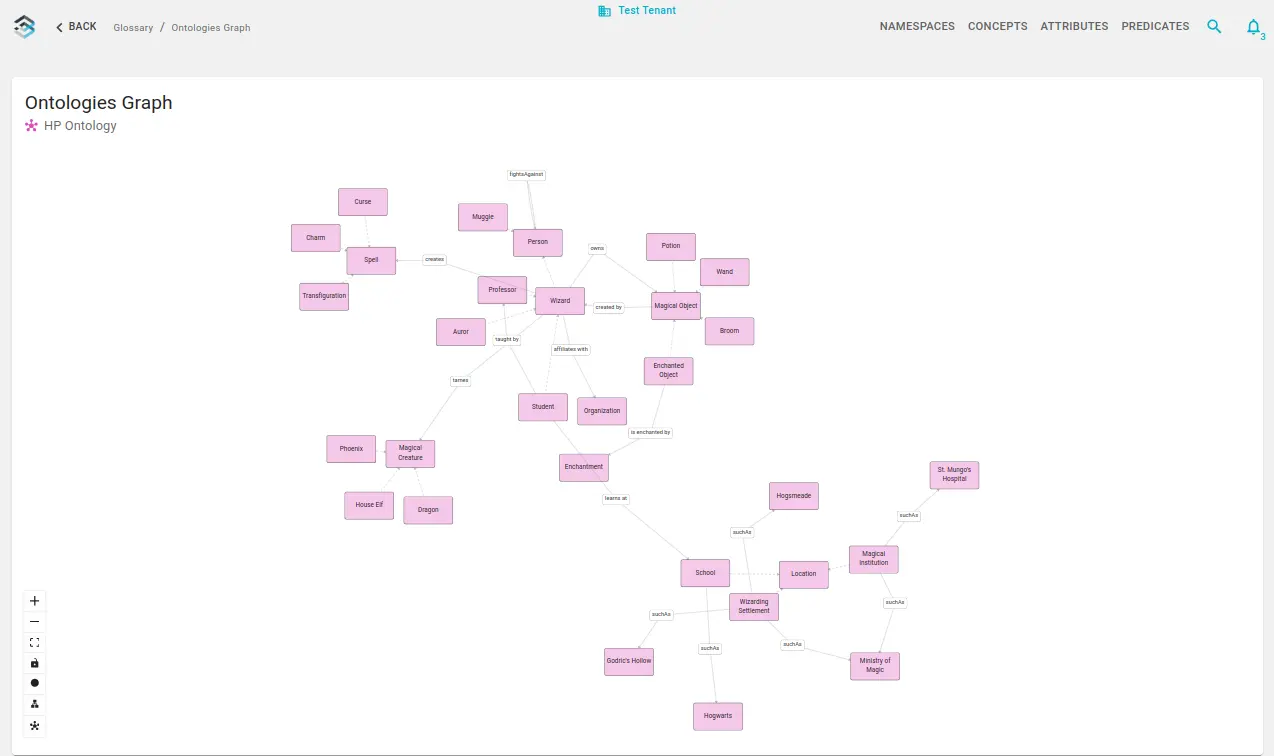
Blindata picks a default layout based on graph size; you can switch manually at any time.
Tips for effective graph editing
- Scope the view — Edit at namespace level to avoid accidental cross-namespace links.
- Document as you go — Fill in concept and attribute descriptions from the detail page or Documentation tab.
- Validate with catalog links — After modeling, link physical fields to confirm the structure matches real data.
- Large graphs — Use concept-level view to focus; switch to force layout when the full namespace is hard to read.
- Export for backup — Export the namespace to Turtle or CSV before major refactors.
Next steps
- Ontology Modeling Guidelines — design methodology and checklist
- Linking Catalog Assets To Business Glossary — connect concepts to physical data
- Business Glossary overview — entry methods and reading order