Intro: Not just a business glossary
Imagine a large organization where different teams use the same term to mean different things—finance uses “customer” in one way, while marketing uses it in another. Blindata’s Business Glossary standardizes vocabulary through namespaces, concepts, attributes, and predicates.
You model in business language in the UI and Graph Editor —not in RDF syntax. For design methodology, see Ontology Modeling Guidelines . For section overview and reading order, see Business Glossary .
Namespaces
In Blindata, a namespace is a container used to ensure that terms within a specific domain are unique. Think of it as a way to avoid naming conflicts. For example, two different teams might both use the term “Customer,” but by using different namespaces, Blindata ensures that each team’s definition of “Customer” stays distinct.
A namespace is a container or context that defines the scope within which the names of concepts, attributes and predicates are unique. It helps to organize and avoid naming conflicts by grouping related elements together.
Uniqueness
A namespace is typically associated with a Uniform Resource Identifier (URI), which in Blindata is called “identifier”, that ensures the uniqueness of terms across different vocabularies or ontologies. For example, two ontologies might both define a term “Person,” but by using different namespaces, you can differentiate between them (e.g., http://example.com/ontology1#Person vs. http://example.org/ontology2#Person).
Grouping terms
A namespace often groups a set of related concepts that belong to the same ontology or domain, such as logistics or accounting.
Standardization
Common ontologies use namespaces to provide standard terms across various systems. By using these namespaces, different systems can easily integrate and understand each other’s data.
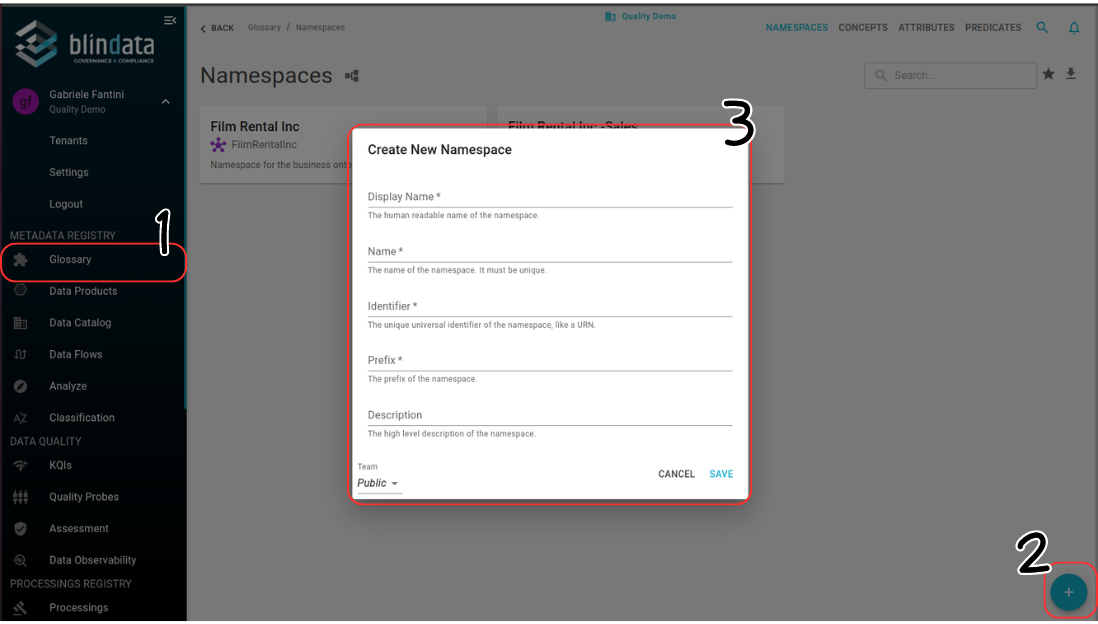
How to create a Namespace
To create a new Namespace simply follow the steps illustrated in the picture below.
How to export Namespaces in CSV
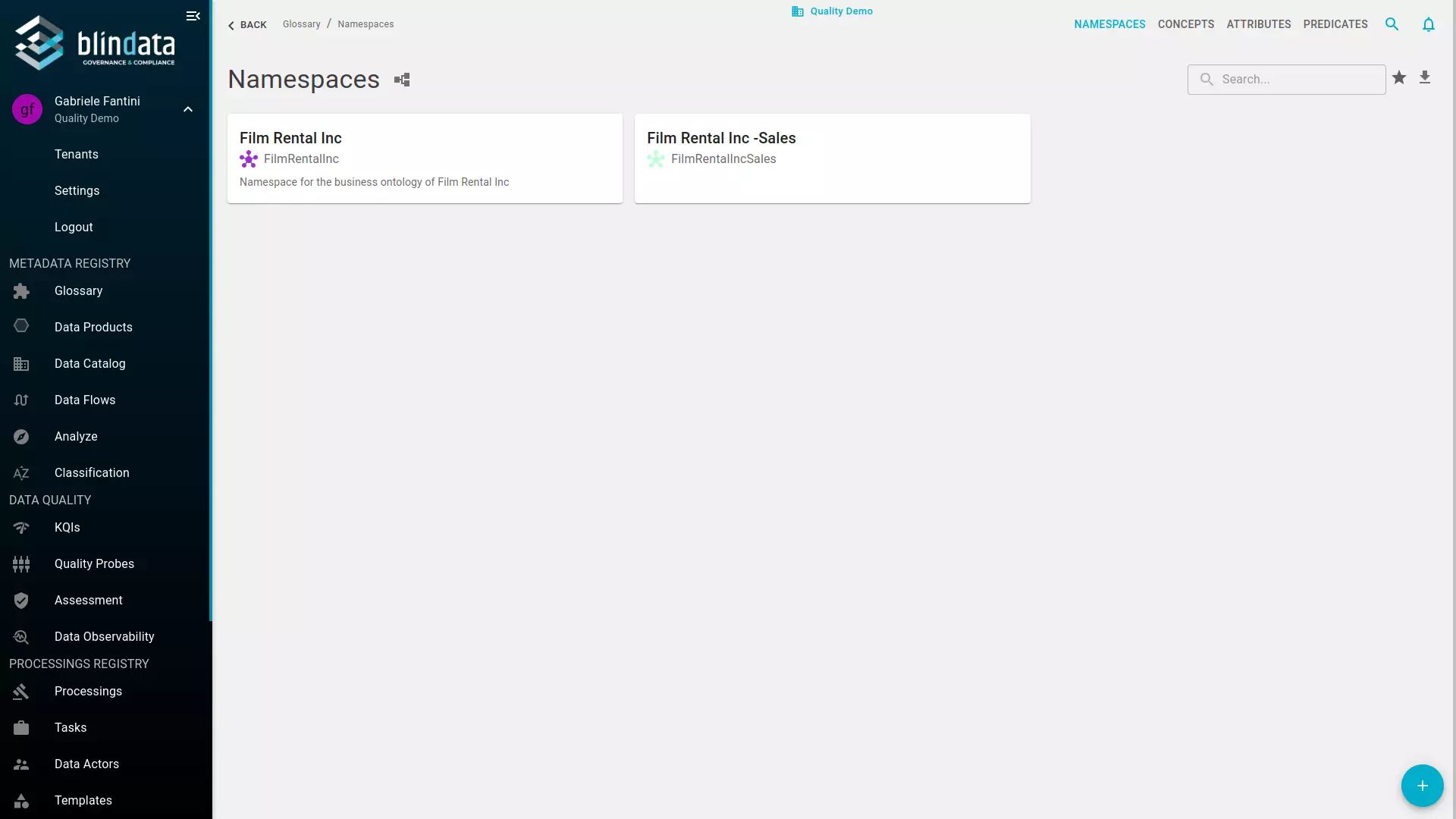
To export all Namespaces in csv format, simply click on the download icon on the top right corner (see image below).
Note
To import Namespaces using a CSV file, start by downloading the template to use as a guide. After filling in the necessary information, upload the completed file through the universal CSV import feature. See CSV Import and Export .
How to import/export a RDF ontology
Blindata supports RDFS Turtle (.ttl) import and export at the namespace level. This is an interchange format for sharing models with external semantic tools—the Business Glossary UI and Graph Editor do not display RDF syntax.
For supported constructs, alignment tips, and design context, see Ontology Modeling Guidelines and Integrating external ontologies .
To import or export the Turtle file of a namespace’s ontology, go to its detail page and use the import/export control shown below.
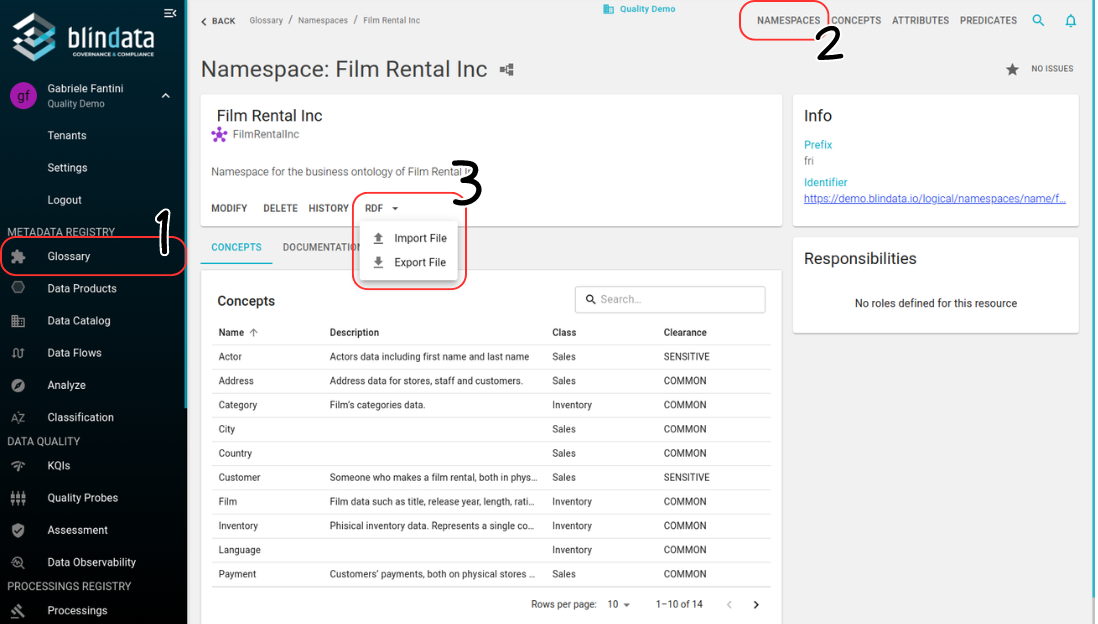
- Export: Available to users with CONCEPTS VIEWER privilege.
- Import: Requires CONCEPTS ADMIN privilege. See Permissions .
Info
When importing an ontology into a namespace, the namespace identifier must be present inside the file. Given the incipit of the file in the example below, the namespace identifier should be http://example.org/ontology#:
@prefix ex: <http://example.org/ontology#> .
@prefix rdfs: <http://www.w3.org/2000/01/rdf-schema#> .
@prefix rdf: <http://www.w3.org/1999/02/22-rdf-syntax-ns#> .
@prefix xsd: <http://www.w3.org/2001/XMLSchema#> .


ex:Artifact a rdfs:Class ;
    rdfs:subClassOf ex:PhysicalEntity ;
    rdfs:label "Artifact" ;
    rdfs:comment "Represents man-made objects" .

ex:Location a rdfs:Class ;
    rdfs:subClassOf ex:PhysicalEntity ;
    rdfs:label "Location" ;
    rdfs:comment "Represents physical places" .
Concepts
A concept is a foundational element of the Business Glossary—a business entity, idea, or process central to a domain (for example, Customer, Product, or Location). In semantic terms, a concept corresponds to an ontology class; in Blindata you define and manage it through the UI without working in RDF.
Each concept can have attributes (literal properties) and relations (links to other concepts or attributes). Clear concept definitions reduce miscommunication across teams and provide anchors for linking catalog assets .
For modeling methodology (discovery techniques, inheritance rules, anti-patterns), see Ontology Modeling Guidelines .
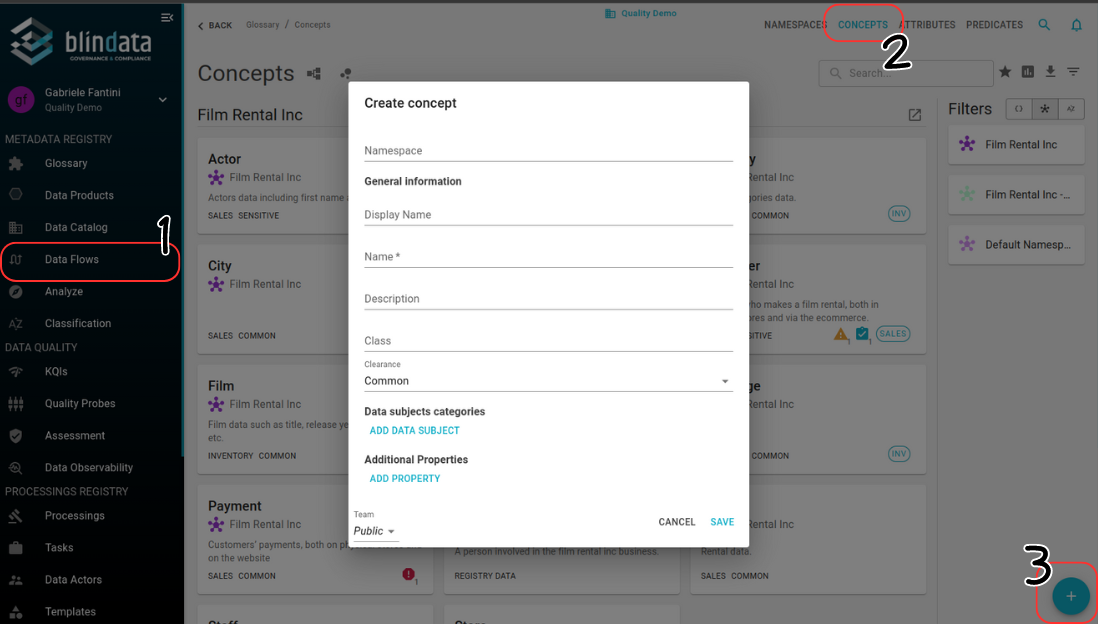
How to create a Concept
To create a concept follow the steps in the picture below.
Note
A concept and its relations and attributes can also be edited using the Ontology Graph Editor .
How to define Concept Hierarchies
Inheritance in Blindata allows concepts to inherit properties, attributes, and relationships from more general, parent concepts. This hierarchical structure helps model relationships where specific concepts share characteristics with broader ones.
For example, a general concept like “Vehicle” might have attributes such as “hasWheels” or “requiresFuel.” A more specific concept like “Car” would inherit these attributes from “Vehicle,” while adding its own details, such as “hasAirbags” or “numberOfDoors.”
Using inheritance in Blindata reduces redundancy and ensures consistency across your business glossary. Changes made to a parent concept automatically apply to all related child concepts, making your system more scalable and easier to manage. This structure helps you organize concepts logically and efficiently.
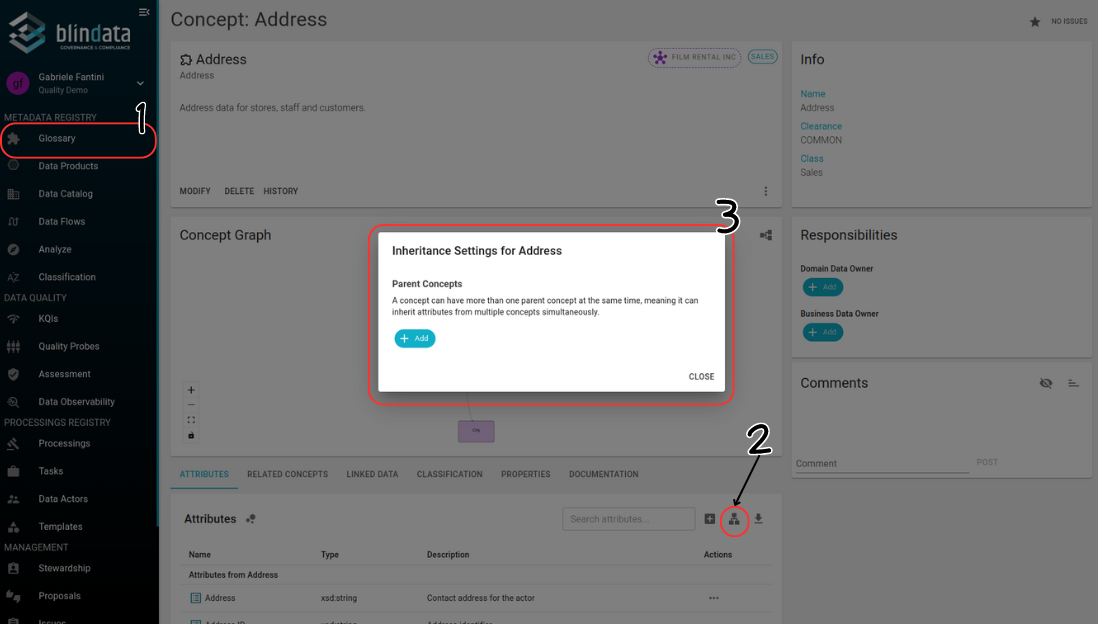
Inheritance relations can be easily defined as follows.
How to export Concepts in CSV
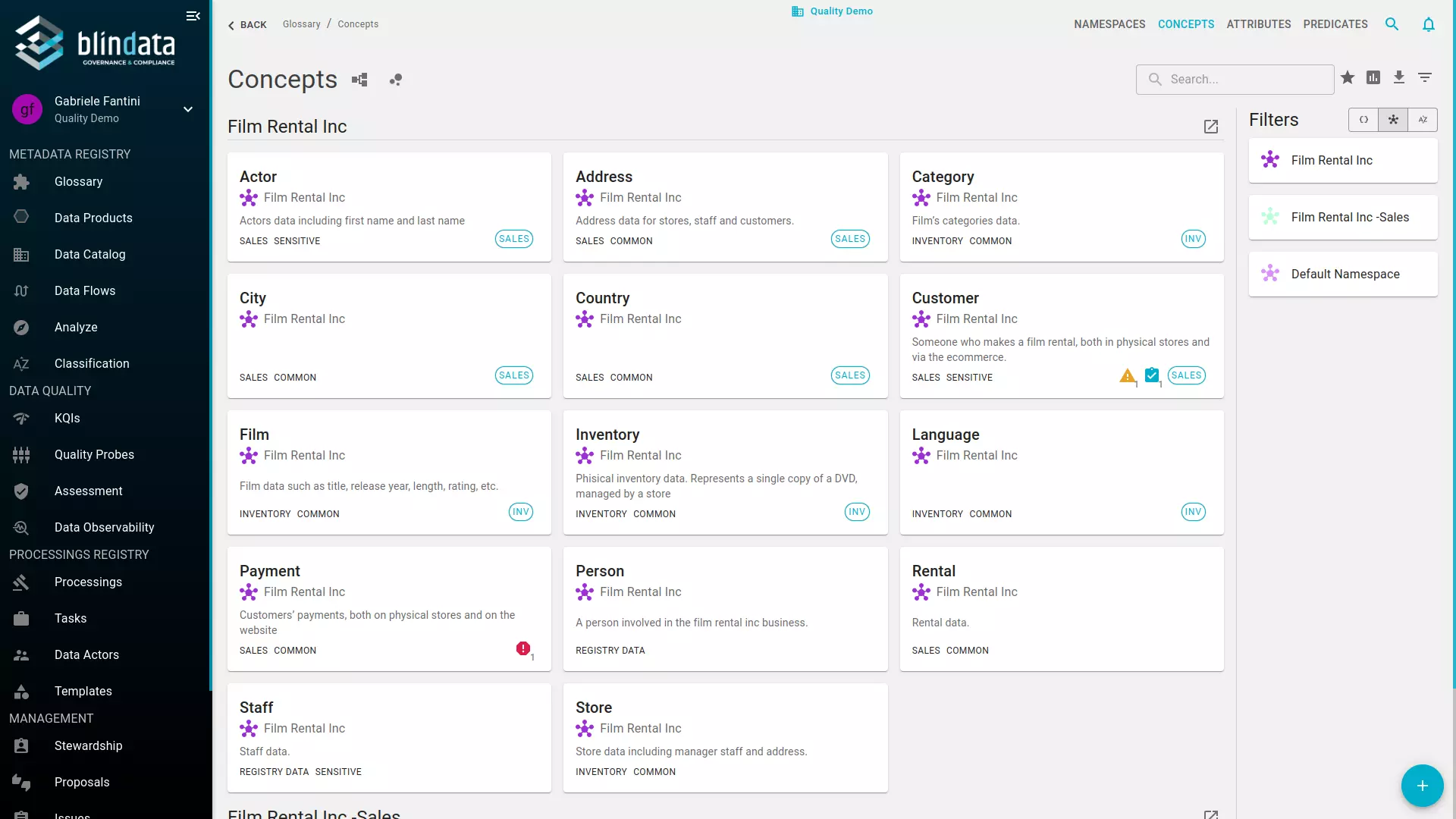
To export Concepts in csv format, simply click on the download icon on the top right corner (see image below).
Note
To import Concepts using a CSV file, start by downloading the template to use as a guide. After filling in the necessary information, upload the completed file through the universal CSV import feature. See CSV Import and Export .
How to export a Concept’s Relations in CSV
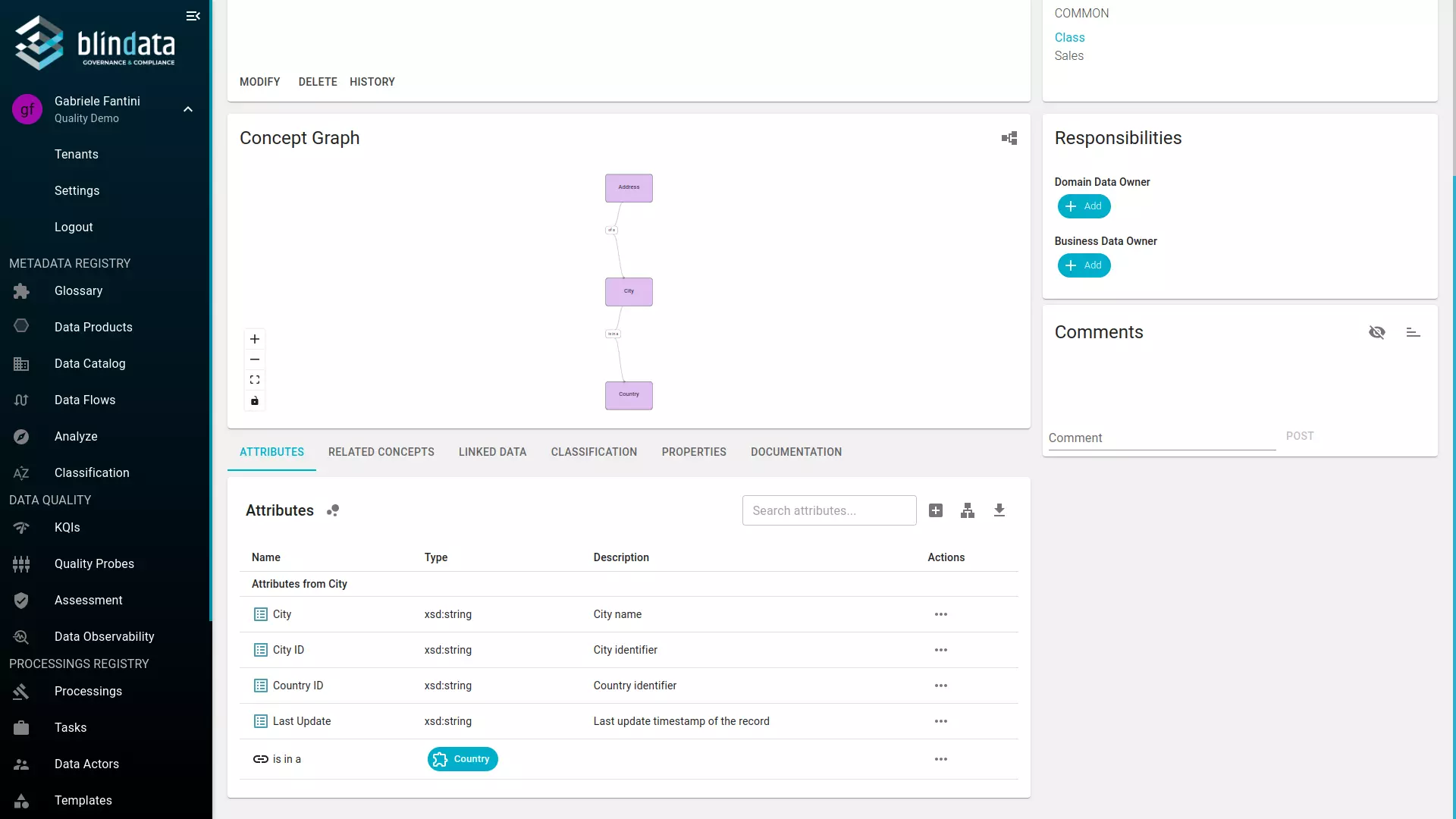
To export a concept’s relations in CSV format, click the download icon in the concept detail page (see image below).
Attributes
An attribute is a property or characteristic that describes a specific aspect of a concept. Attributes help to define the features of a concept, providing additional details or qualities that refine its meaning. For example, a concept like “Customer” might have attributes such as “Customer ID,” “Name,” or “Date of Birth” to represent specific information about each instance of the concept.
Attributes play a critical role in giving depth to your data by making concepts more descriptive and meaningful.
These attributes can either be created directly within a concept or externally as independent entities that are then linked to a concept through a relationship.
-
Attributes within a Concept: When an attribute is defined inside a concept, it becomes an intrinsic part of that concept, directly describing a key property or characteristic. For example, if the concept is “Customer,” attributes like “Customer Name” or “Customer ID” could be created within that concept to describe specific details about the customer.
-
Attributes Created Externally: Alternatively, attributes can be created as standalone entities outside of the concept and linked to it using relationships. This approach is particularly useful when multiple concepts share common attributes. For example, an attribute such as “Address” might be a separate entity that can be linked to various concepts like “Customer,” “Supplier,” or “Office” through relationships such as “hasAddress.” This enables reuse of the same attribute across different concepts without redundancy, enhancing flexibility and scalability.
How to create an Attribute within a Concept
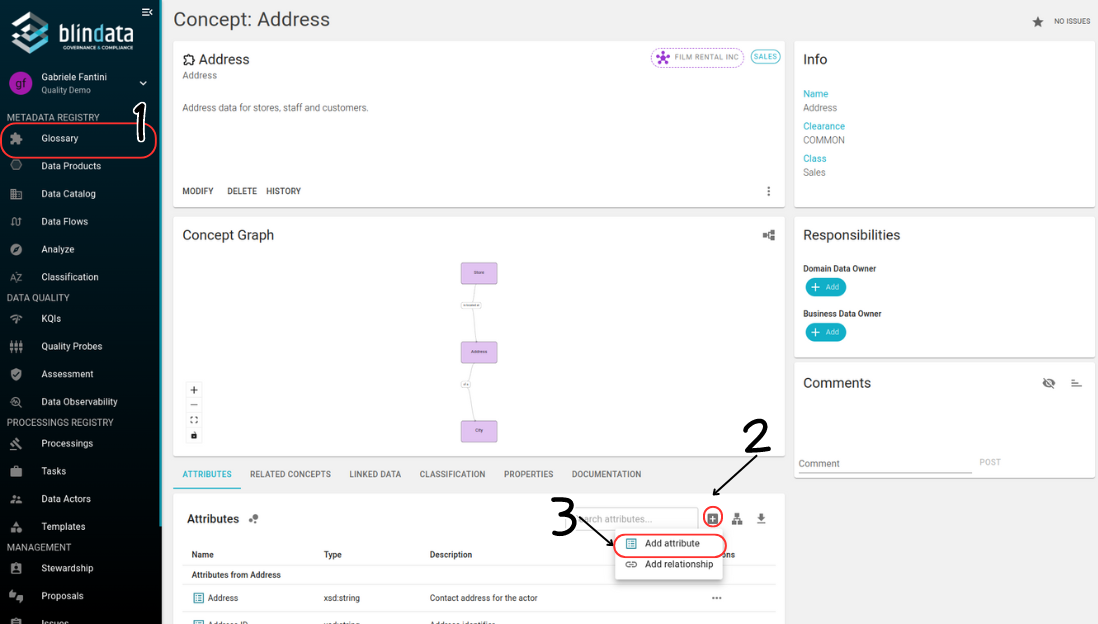
To create an attribute within a concept follow the steps in the picture below.
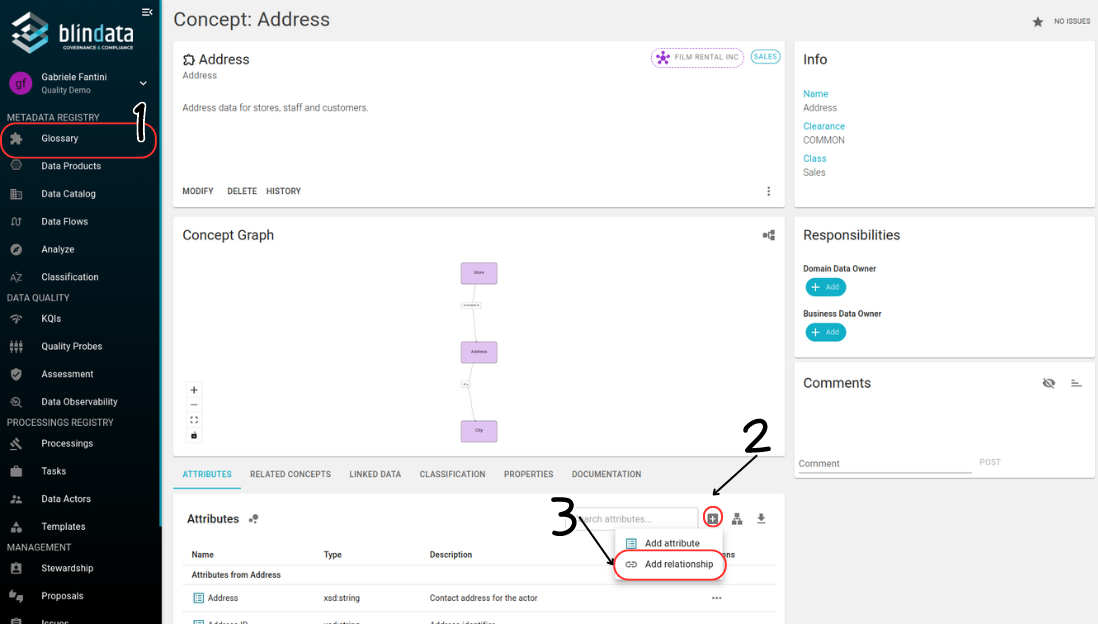
How to link an Attribute (or a Concept) to a Concept
To add a relation between a concept and an existing attribute or concept follow the steps in the picture below.
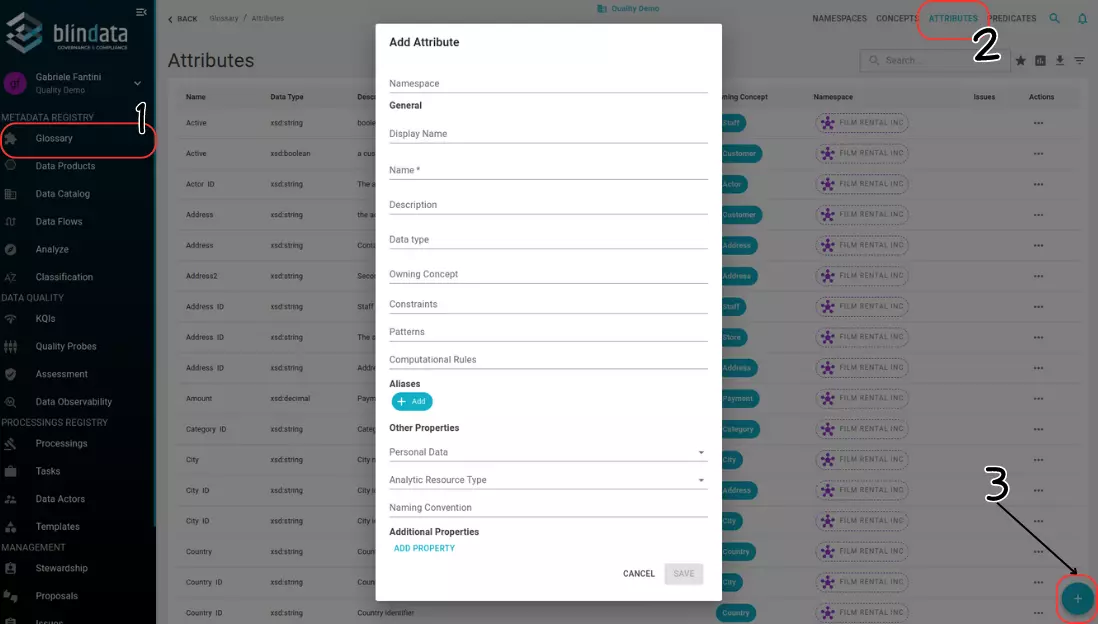
How to create an Attribute without an owning Concept
To define an attribute (standalone or concept-related) follow as illustrated below.
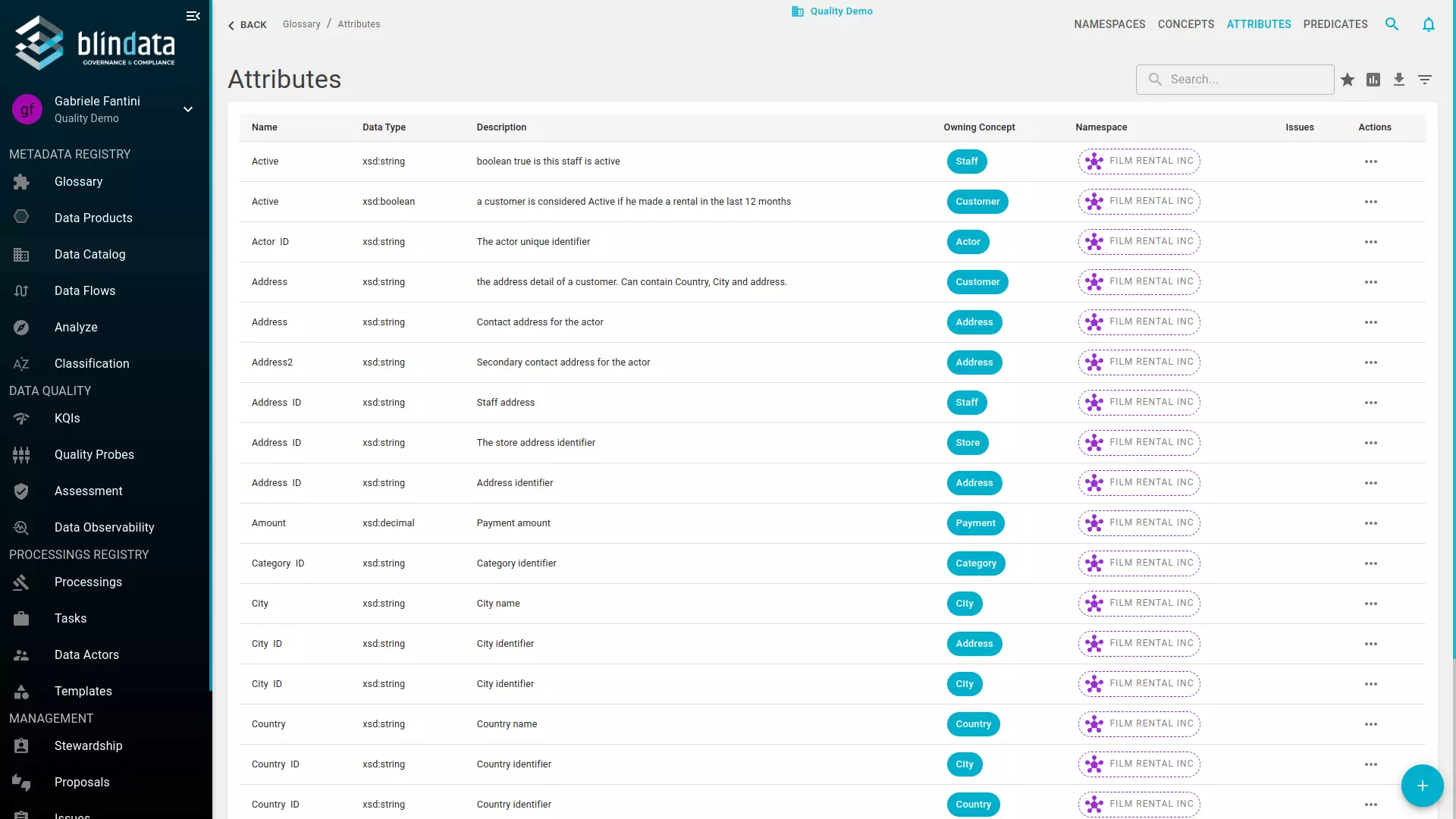
How to export Attributes in CSV
To export Attributes in csv format, simply click on the download icon on the top right corner (see image below).
Note
To import Attributes using a CSV file, start by downloading the template to use as a guide. After filling in the necessary information, upload the completed file through the universal CSV import feature. See CSV Import and Export .
Predicates
In an ontology, relationships between objects are structured in a subject-predicate-object format. This means that one object (the subject) is connected to another (the object) through a specific relationship (the predicate). Blindata supports this by allowing you to register and document notable predicates, ensuring that relationships between objects are clearly defined and consistently applied across your data models.
What is a predicate?
A predicate is the bridge that connects concepts, attributes, or other predicates. For instance, the predicate hasInvoice can link the concept Order to the concept Invoice.
A predicate connects a subject (typically a concept or a predicate) to an object (another concept, attribute or predicate), helping to define how different entities are related or how a concept is characterized. Predicates provide a reusable, consistent way to define these relationships across various concepts within a namespace.
For instance, a predicate like “hasName” might be used to link multiple concepts (e.g., “Person,” “Organization,” “Product”) to their respective “name” attributes. This makes the predicate highly reusable, as it carries the same meaning and function, regardless of the specific concept it is applied to. Similarly, a predicate such as “isPartOf” could describe hierarchical or part-whole relationships between different concepts, such as “Department” and “Organization” or “Wheel” and “Car.”
It is also possible to define a predicate of a predicate. This allows for hierarchical relationships between predicates, where one predicate inherits the meaning or characteristics of another, more general predicate. For example:
- Predicate A (general): “owns” — This predicate could be used to describe ownership in a general sense.
- Predicate B (specific): “ownsCar” — This is a more specific predicate that describes the ownership of a car but is a sub-property of the more general “owns” predicate.
By defining ownsCar as subPropertyOf “owns,” means that if someone “ownsCar,” they also satisfy the condition of “owns” but in a more specific way.
How to create a Predicate
It is possible to register a new Predicate from an existing Relation by simply clicking on it (picture below).
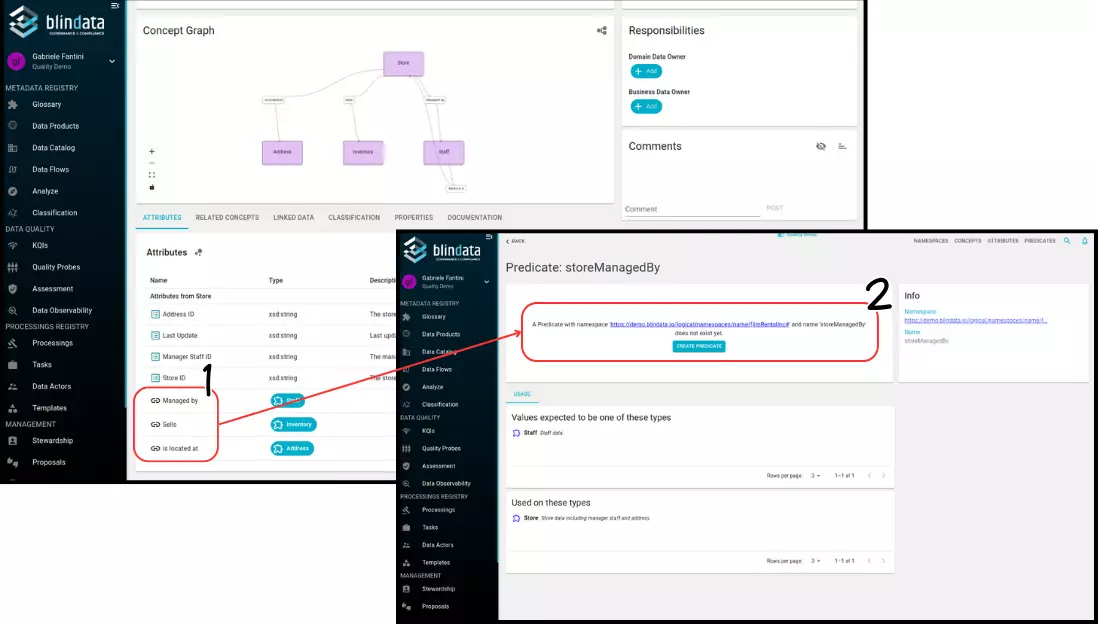
Alternatively, you can define a new Predicate from the Predicates section of the Business Glossary module.
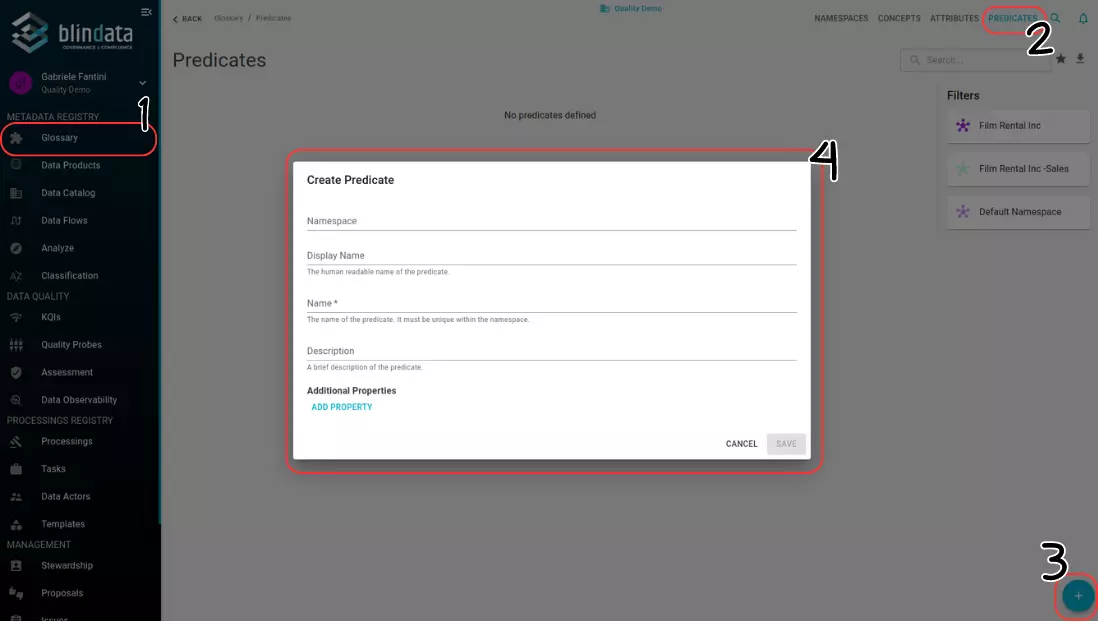
How to export Predicates in CSV
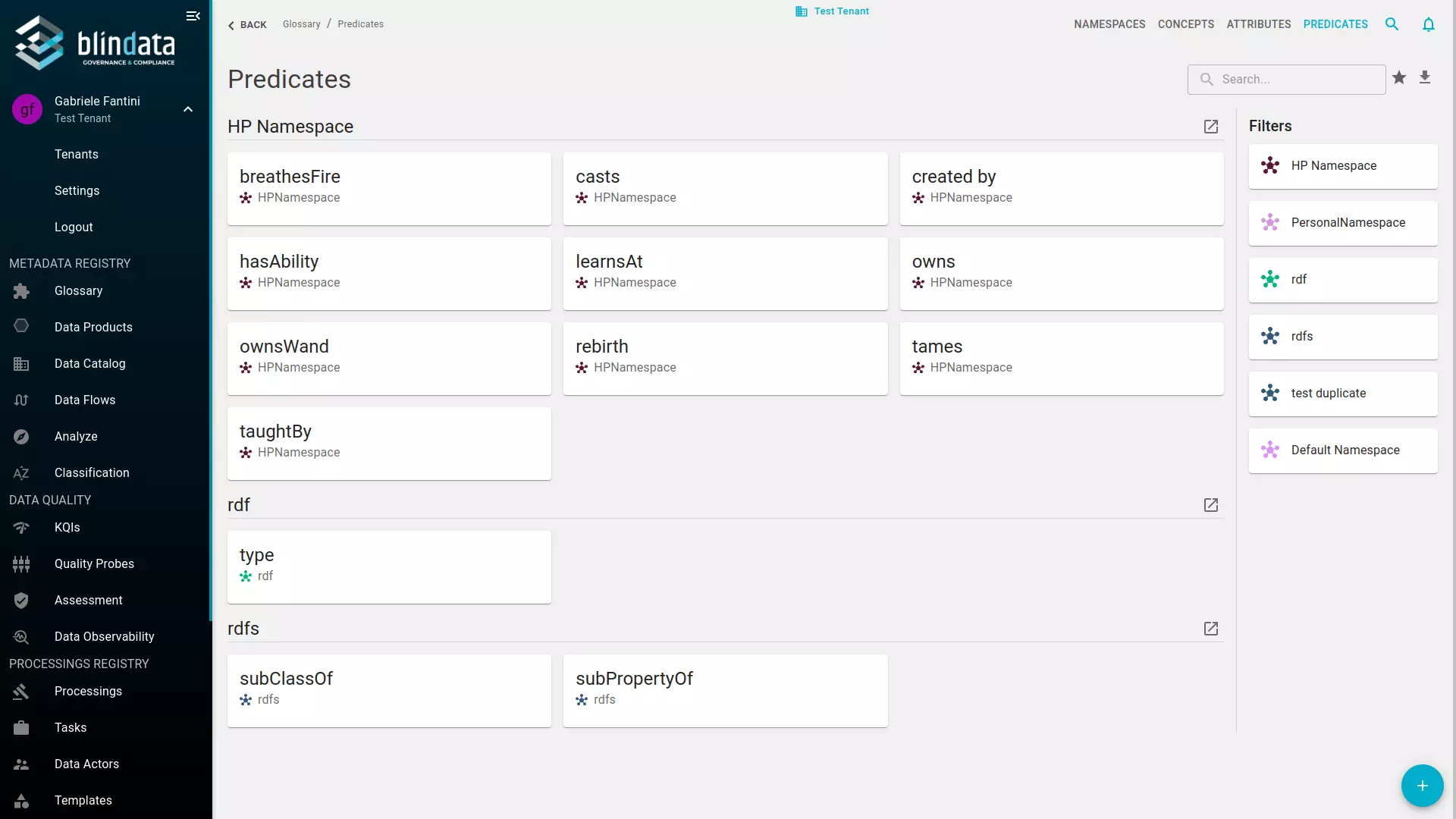
To export Predicates in csv format, simply click on the download icon on the top right corner (see image below).
Note
To import Predicates using a CSV file, start by downloading the template to use as a guide. After filling in the necessary information, upload the completed file through the universal CSV import feature. See CSV Import and Export .
Use of a Predicate in a relationship: Subject-Predicate-Object Structure
In Blindata, relationships between terms are structured using the subject-predicate-object model. This structure forms the basis for linking concepts, creating meaningful connections between them. When connecting a concept to another concept or an existing attribute, a relationship is formed, effectively creating a statement between terms.
There are three types of relationships in Blindata:
-
Inheritance:
One concept derives properties from a parent concept (for example,EmployeeunderPerson). In RDF terms this corresponds tordfs:subClassOf; in the UI you define it as a parent-child hierarchy. -
Schema Property:
Connects concepts in a business schema (for example,Order→hasInvoice→Invoice). -
Statement:
Metadata-level linkage between concepts (for example, equivalence betweenCustomerandClient). In semantic terms this may correspond to constructs such asowl:equivalentClass; advanced statements are often imported via Turtle rather than composed in the UI.
These relationship types are expressed in the UI with predicates—you do not need to use RDF predicate names directly. Predicates can be created and used in relationships without being registered in the predicates registry first.
For design guidance on when to use each type, see Defining Relationships between Concepts .
Permissions and custom properties
Glossary operations require CONCEPTS privileges. When Stewardship ACL is enabled for the Business Glossary, users also need an assigned responsibility on the namespace or concept they want to modify—namespace-level responsibilities inherit to concepts, attributes, and predicates within that namespace.
See Permissions (CONCEPTS privileges and Stewardship ACL) and the full Permissions List .
CONCEPTS privileges
| Privilege | Key capabilities |
|---|---|
| VIEWER | View glossary objects, open Graph Editor, export Turtle from namespace detail |
| EDITOR | Create and edit concepts, attributes, relations, predicates (including in Graph Editor)—subject to Stewardship ACL when enabled |
| ADMIN | Create/delete namespaces, import Turtle ontologies, define custom properties on glossary objects |
Stewardship ACL
Configure ACL for the Business Glossary module from the stewardship roles page (requires STEWARDSHIP ADMIN). Assign responsibilities on namespace or concept detail pages. See Manage Access Control Based on Stewardship Responsibilities .
Custom properties (ADMIN only) let you extend namespaces, concepts, attributes, and predicates with organization-specific metadata fields. See Custom Properties for the general mechanism.
Next steps
- Ontology Modeling Guidelines — design methodology
- Ontology Graph Editor — visual modeling
- Linking Catalog Assets To Business Glossary — connect concepts to physical data